Owen sells handmade pottery from a WooCommerce shop in Bristol. His developer left him a staging copy with a single line that told every search engine to stay away, and three weeks after launch Google had found almost nothing. Learning how to create a robots.txt file properly took him one afternoon and fixed the problem for good.
The file is small, plain text and public, yet one wrong character can block a whole site. Below, Owen builds his from a blank document, uploads it, tests it and avoids the errors that most often cost small sites their traffic.
Quick answer: To create a robots.txt file, write User-agent, Disallow and Allow rules in a plain UTF-8 text file named robots.txt, add a full Sitemap URL, and upload it to your site root so it loads at yourdomain.com/robots.txt. Google Search Central reads files up to 500 KiB, then you test it in Search Console.
In This Guide
What does a robots.txt file actually control?
A robots.txt file controls which URLs on your site search engine crawlers are allowed to request; it does not control whether a page appears in search results. Google can still list a blocked URL if other pages link to it, usually without a description.
That distinction shaped Owen’s plan. He wanted Google to spend its visits on his 40 product pages, not on thousands of near duplicate URLs created by sort orders and filters. Forty products with five sort options and three colour filters can produce 600 extra URL variations, so trimming those is the real job of his file. For a page that must stay out of Google entirely, our meta tag generator writes the noindex tag you need, as long as the page itself is not blocked in robots.txt, because Google has to crawl a page before it can see that tag.
| Goal | Right tool | Why |
|---|---|---|
| Stop crawling of filter and cart URLs | robots.txt Disallow | Saves crawler visits for pages that matter |
| Keep a page out of search results | noindex meta tag or header | Google must crawl the page to see it |
| Hide private or customer data | Password or login | robots.txt is public and only a request |
| Opt out of AI model training | robots.txt rules for AI crawlers | Each AI company publishes its own user agent |
How do you write robots.txt rules?
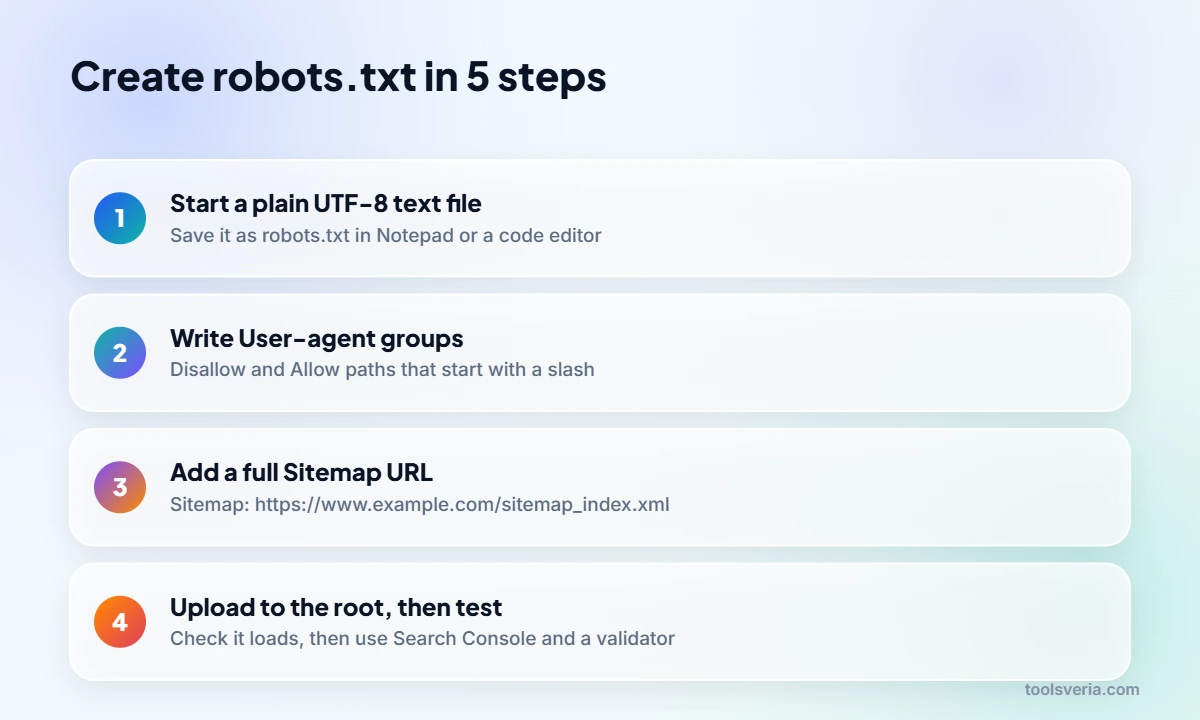
You write robots.txt rules in groups: each group starts with a User-agent line naming a crawler, followed by Disallow and Allow lines that list URL paths starting with a forward slash. A star in the User-agent line means every crawler that has no group of its own.
| Directive | What it does | Example | Read by Google? |
|---|---|---|---|
| User-agent | Names the crawler the group applies to | User-agent: * | Yes |
| Disallow | Blocks paths that start with the value | Disallow: /cart/ | Yes |
| Allow | Reopens a path inside a blocked folder | Allow: /wp-admin/admin-ajax.php | Yes |
| Sitemap | Points to your XML sitemap by full URL | Sitemap: https://example.com/sitemap.xml | Yes |
| Crawl-delay | Asks for a pause between requests | Crawl-delay: 10 | No, Google ignores it |
| Noindex | Old unofficial rule to drop pages | Noindex: /old/ | No, unsupported since September 2019 |
Paths are case sensitive, so /Shop/ and /shop/ are different. Two wildcards help with patterns: a star matches any run of characters and a dollar sign marks the end of a URL. Owen used Disallow: /*?orderby= to catch every sorted product list and Disallow: /*.pdf$ to keep old price lists out of crawls.
Conflicts are settled by length. When two rules match the same URL, the official Google robots.txt specification says the rule with the longer path wins, and on a tie the less restrictive Allow rule applies. That is why a long Allow line can reopen one file inside a short Disallow folder.
How to create a robots.txt file in 5 steps
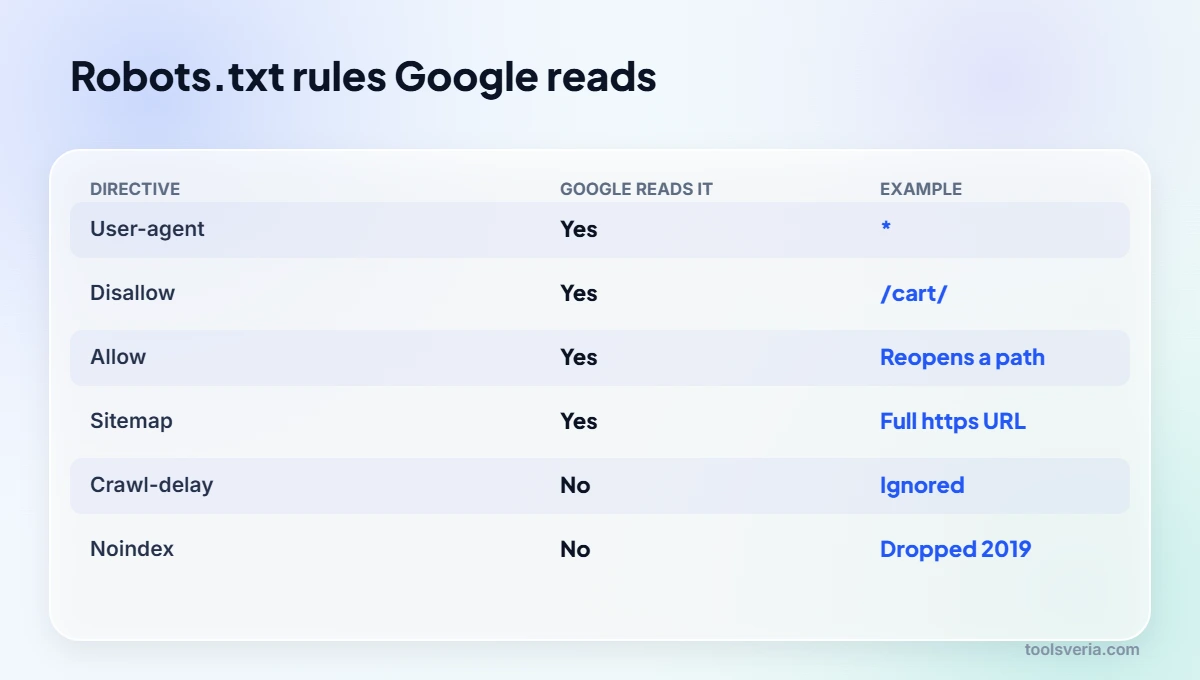
Creating a robots.txt file takes five steps: open a plain text editor, write your groups, add the sitemap line, upload the file to the root folder and test it. Owen followed this order, and the whole job took under an hour.
Step 1: Start a plain text file
Use Notepad, TextEdit in plain text mode or any code editor, and save the file as robots.txt in UTF-8. Word processors add hidden formatting and smart quotes that crawlers cannot read, so avoid them.
Step 2: Write your groups
Owen’s shop file ended up with one group for all crawlers:
User-agent: *
Disallow: /wp-admin/
Allow: /wp-admin/admin-ajax.php
Disallow: /cart/
Disallow: /checkout/
Disallow: /my-account/
Disallow: /*?orderby=
Disallow: /*?add-to-cart=
He did not block /wp-content/ or /wp-includes/, because Google needs the CSS and JavaScript stored there to render pages the way shoppers see them. Blocking those folders is an old habit that can make a mobile friendly page look broken to Googlebot.
Step 3: Add your sitemap
Add Sitemap: https://www.example.com/sitemap_index.xml on its own line, using the full address including https. A relative path such as /sitemap.xml is not valid here, and you can list more than one sitemap if your site has several.
Step 4: Upload it to the root
Upload the file to the top level folder of your site, usually public_html, with your host’s file manager or an FTP client, so it opens at https://www.example.com/robots.txt. A copy inside a subfolder is ignored, and each subdomain, such as shop.example.com, needs its own file. On WordPress, deleting any physical file lets the core software or an SEO plugin serve a virtual one that you edit from the dashboard.
Step 5: Test it
Open the address in a private browser window to confirm it loads, then check the robots.txt report in Google Search Console for fetch errors. Pasting the file into our robots.txt validator flags mistakes by line number and lets you test any URL against Googlebot before the changes go live.
How do you block AI crawlers with robots.txt?
You block AI crawlers by adding a group that names each AI user agent and disallows the whole site with a single slash. Several agents can share one group, so Owen added this below his main rules:
User-agent: GPTBot
User-agent: ClaudeBot
User-agent: CCBot
User-agent: Google-Extended
Disallow: /
Google-Extended controls whether Google may use your content for its Gemini models; it has no effect on how your pages rank in Google Search, so blocking it is safe for SEO. Crawlers that follow the robots.txt standard honour these lines, but robots.txt cannot force a badly behaved bot to stop, which is a job for your firewall or host.

Which robots.txt mistakes can hide a whole site?
The mistake that hides a whole site is a leftover Disallow: / under User-agent: *, usually copied from a staging server at launch. That single line is what kept Owen’s shop out of Google for three weeks.
- Blocking a page you have also tagged noindex. Google cannot crawl it, so it never sees the noindex, and the URL can linger in results.
- Writing paths without the leading slash, or with the wrong capital letters.
- Expecting Crawl-delay to slow Googlebot. Google ignores it; Bing reads it.
- Letting the file grow past 500 KiB. Google ignores any rules beyond that size, which only happens on very large sites with long generated lists.
- Listing secret folders. Anyone can read robots.txt, so naming /private-invoices/ advertises it.
Changes are not instant either. Google normally caches robots.txt for up to 24 hours, so a fix you upload this morning may take a day to show. The step by step Google Search Central guide to creating robots.txt explains how to request a faster refresh from Search Console when a mistake is urgent.
Once crawling is sorted, the next win is how your pages look in results. Our SERP preview tool shows how a title and description will display, and an Open Graph tag generator handles the preview when your pages are shared on social media.
Key points
- A robots.txt file must be plain UTF-8 text named robots.txt in the root folder of each host.
- Google reads only User-agent, Disallow, Allow and Sitemap, and ignores Crawl-delay and Noindex.
- Disallow stops crawling, not indexing, so use a noindex tag to keep a page out of results.
- Google applies a 500 KiB size limit and usually caches the file for up to 24 hours.
- AI crawlers such as GPTBot, ClaudeBot, CCBot and Google-Extended can be blocked in one shared group.
Key Robots.txt Terms Explained
These terms explain each directive and concept you meet when you learn how to create a robots.txt file that guides crawlers without blocking important pages.
- User-agent
- The line that names the crawler a group of rules is aimed at, such as Googlebot or a star for every other bot. A crawler follows the most specific group that matches its name and ignores the rest.
- Disallow directive
- A rule that asks crawlers not to request URLs whose paths begin with the given value. It stops crawling, not indexing, so a disallowed address can still appear in results if other sites link to it.
- Allow directive
- A rule that reopens a specific path inside a folder that is otherwise disallowed. When both match, the rule with the longer path wins, which lets a single file stay crawlable within a blocked directory.
- Path wildcard
- A pattern character used in rule paths: a star stands for any run of characters and a dollar sign marks the end of the address. Together they let one line cover many parameter or file type URLs.
- Crawl budget
- The number of URLs a search engine is willing and able to fetch from a site in a period. Blocking endless filter and sort variations helps that capacity go to product and content pages instead.
- Noindex
- An instruction in a page’s meta tag or HTTP header telling search engines to leave the page out of results. It only works if crawlers can fetch the page, so it should never be combined with a disallow rule.
Frequently Asked Questions
My small blog has no robots.txt at all. Is that a problem?
No, a missing robots.txt simply means crawlers may visit every public URL, which suits many small sites. Adding a short file is still worthwhile, because it gives you a place to list your sitemap and block admin or search result pages.
I blocked a page but it still shows in Google. Why?
Blocking stops Google crawling the page, not listing it, so links from elsewhere can keep the URL in results. Remove the Disallow line, add a noindex meta tag, and let Google recrawl the page so it can see the tag.
Can I put robots.txt in my /blog/ folder instead of the root?
No, crawlers only look for robots.txt at the root of each host, such as example.com/robots.txt. A file inside /blog/ is ignored, so add your blog rules to the root file using paths that start with /blog/.
Will blocking GPTBot hurt my Google rankings?
No, GPTBot is OpenAI’s crawler, and Googlebot follows its own group, so blocking GPTBot has no effect on Google Search. The same applies to Google-Extended, which governs AI training use rather than search ranking.
Owen’s shop was fully crawled within a fortnight of replacing the staging file, and his sorted product URLs stopped cluttering the crawl stats. Build your own file, upload it to the root and test it the same day. Figures checked October 2026.