Start from a preset, add your paths and sitemap, choose which AI crawlers to block, then copy or download the file.
Upload the file as plain text to the root of your domain, for example https://www.example.co.uk/robots.txt. Robots.txt asks well behaved crawlers to stay out. It does not hide pages or protect private files.
This robots.txt generator creates a correctly formatted robots.txt file for website owners, bloggers and developers, with presets for WordPress and WooCommerce, optional AI crawler blocking and sitemap lines. It follows the rules in the Google Search Central robots.txt guide and checks the file as you build it, so a stray slash cannot quietly remove your whole site from search.
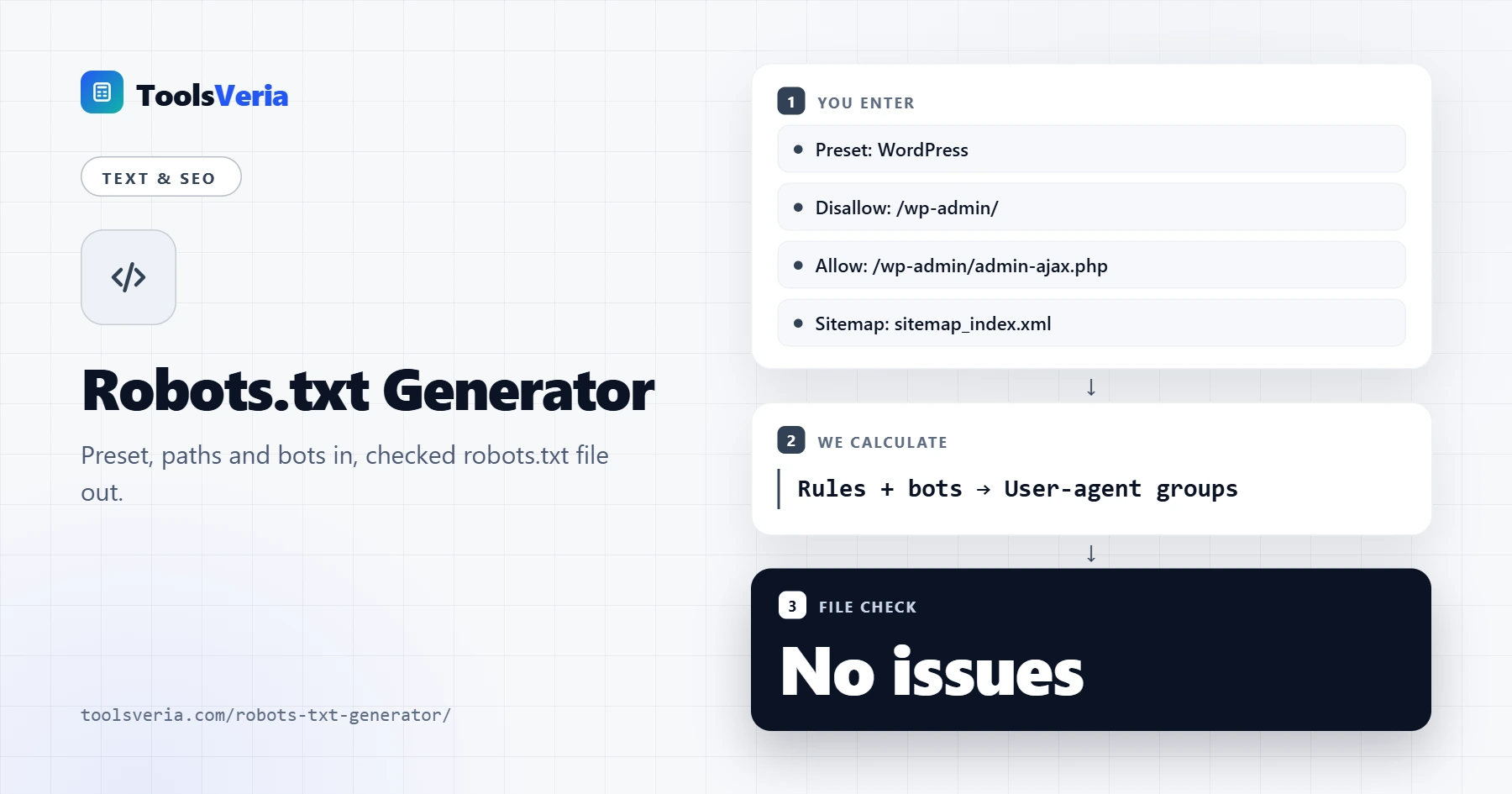
Quick answer: a basic robots.txt needs a User-agent line, any Disallow rules and a Sitemap line. For WordPress that is User-agent: *, Disallow: /wp-admin/, Allow: /wp-admin/admin-ajax.php and your sitemap URL. The robots.txt generator above builds this for you and flags mistakes before you upload the file.
In This Guide
What Is a Robots.txt Generator?
A robots.txt generator is a tool that writes the plain text file crawlers read before visiting your site, telling them which paths they may and may not request. The file always sits at the root of the host, such as https://www.example.co.uk/robots.txt, and applies only to that host and protocol.
The file is made of groups. Each group starts with one or more User-agent lines naming the crawler, followed by Disallow and Allow rules. A crawler obeys the most specific group that names it, and only falls back to User-agent: * if no group matches. Within a group, Google applies the rule with the longest matching path, and if an Allow and a Disallow match equally, the less restrictive Allow wins. Two wildcards are supported: * matches any run of characters and $ marks the end of a URL. Sitemap lines can go anywhere in the file and must be full URLs.
How to Use the Robots.txt Generator
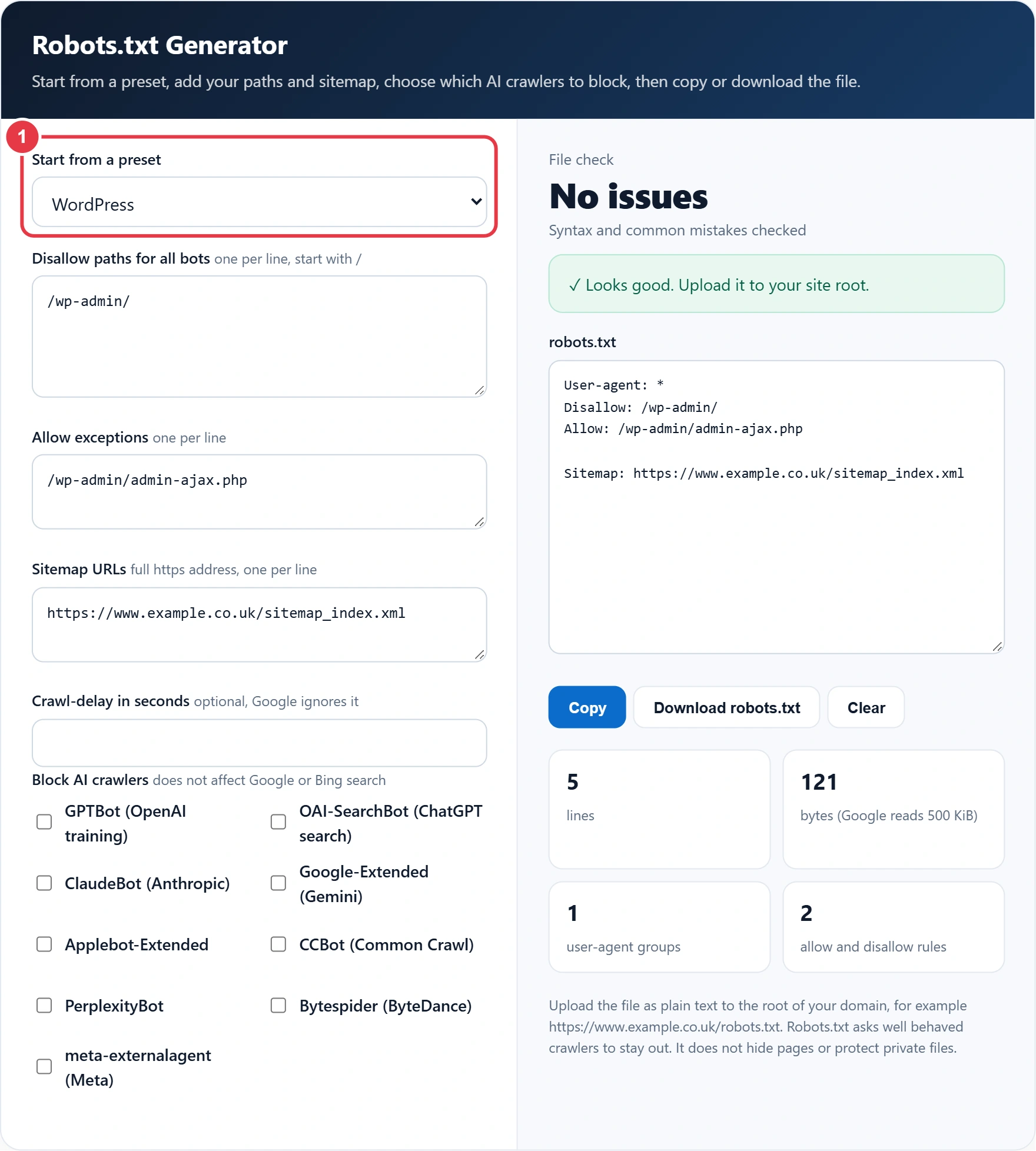
Step 1: Choose a Preset
Pick Allow everything for a simple brochure site, WordPress for most blogs, or WooCommerce shop for an online store. Block everything is only for staging copies that should never appear in search. Any preset can be edited afterwards.
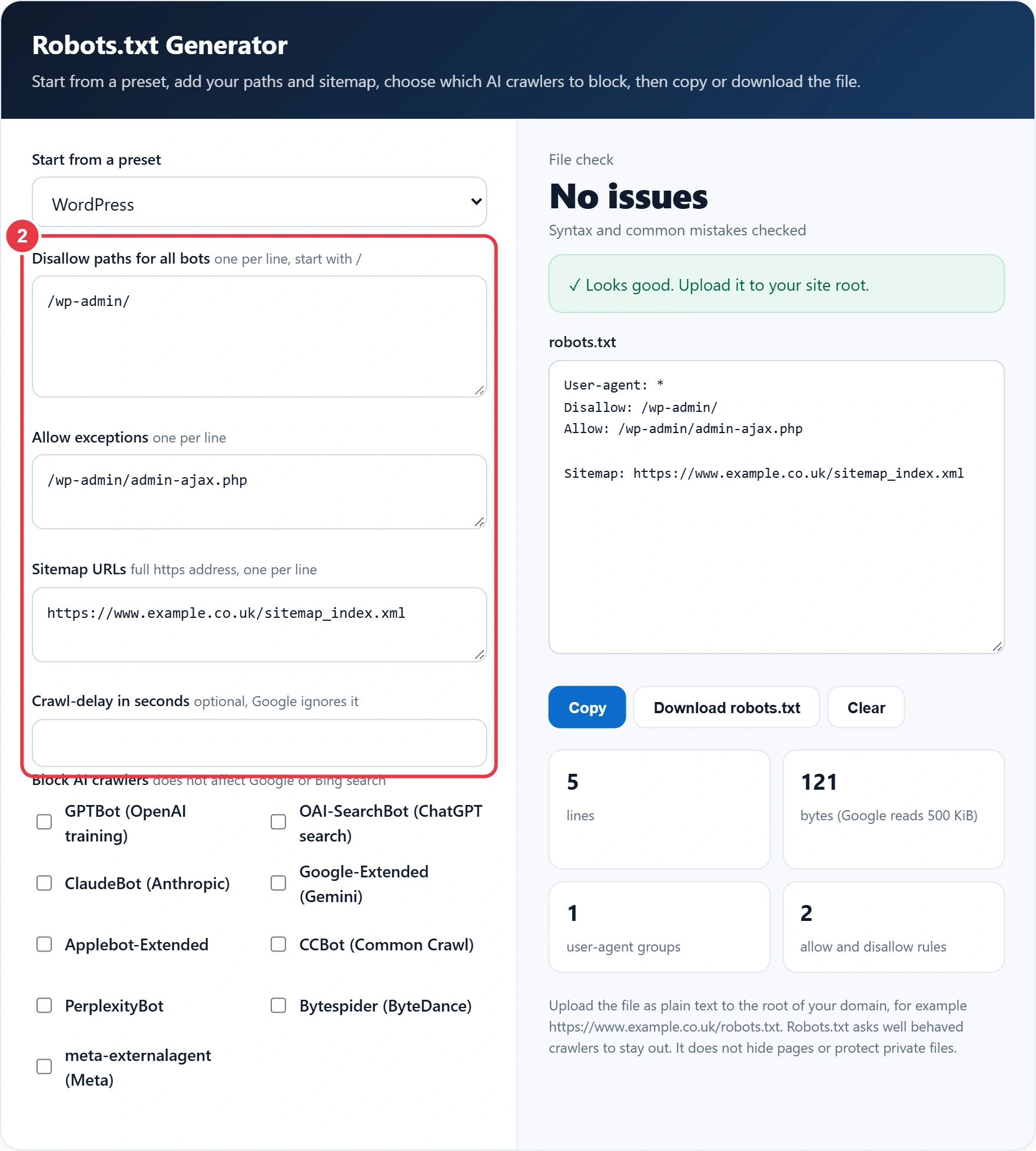
Step 2: Edit Paths and Add Your Sitemap
Add one path per line, starting with a slash. Paths are case sensitive, so /Basket/ and /basket/ are different, and clean lowercase URLs from the slug generator make rules easier to get right. Paste your sitemap URL in full. Leave Crawl-delay empty unless a smaller search engine is overloading your server.
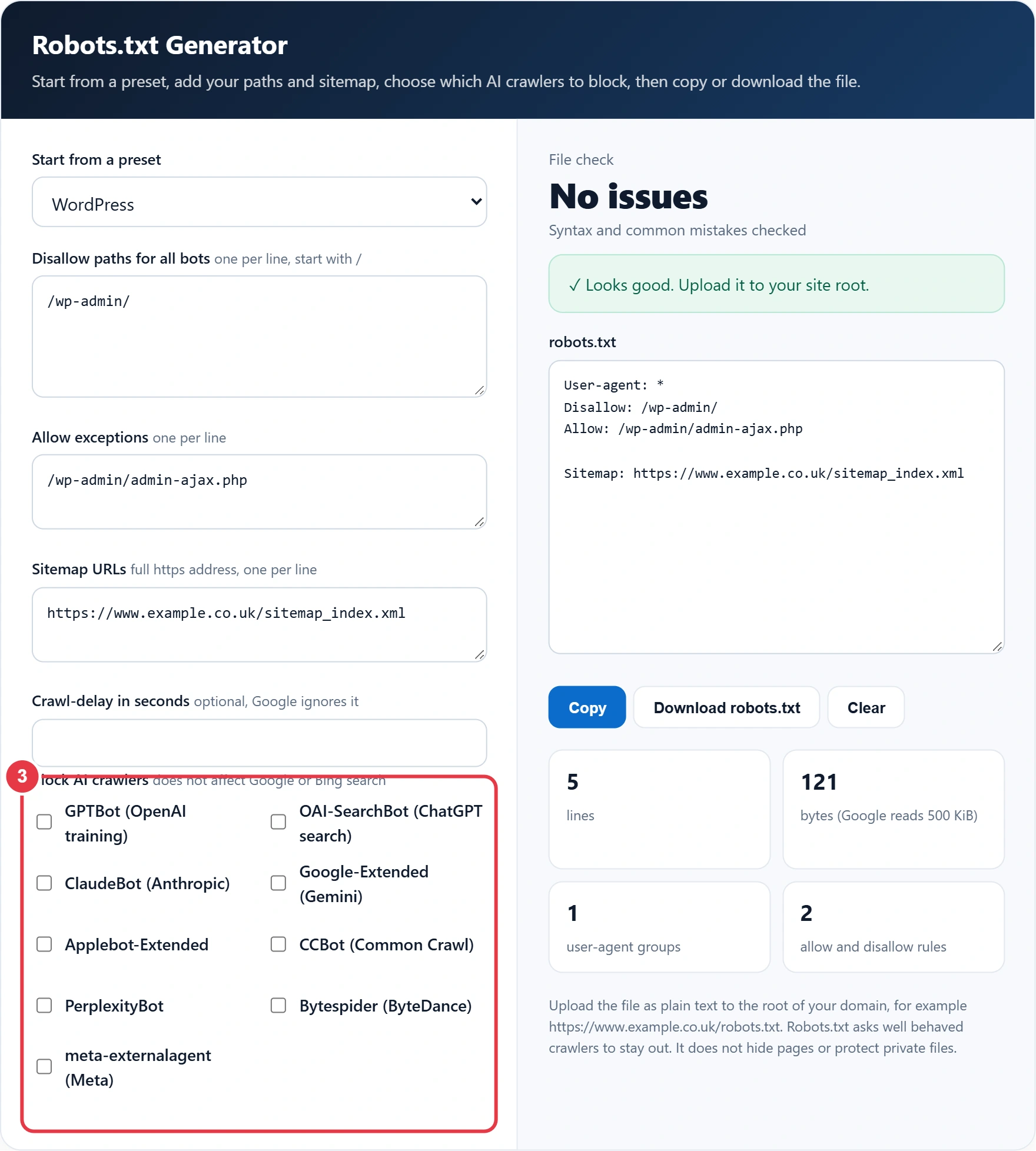
Step 3: Decide on AI Crawlers
Tick any AI crawler you want to keep out of the whole site. The robots.txt generator lists them together in one group with a single Disallow: / line, which is valid and shorter than repeating the rule for each bot.
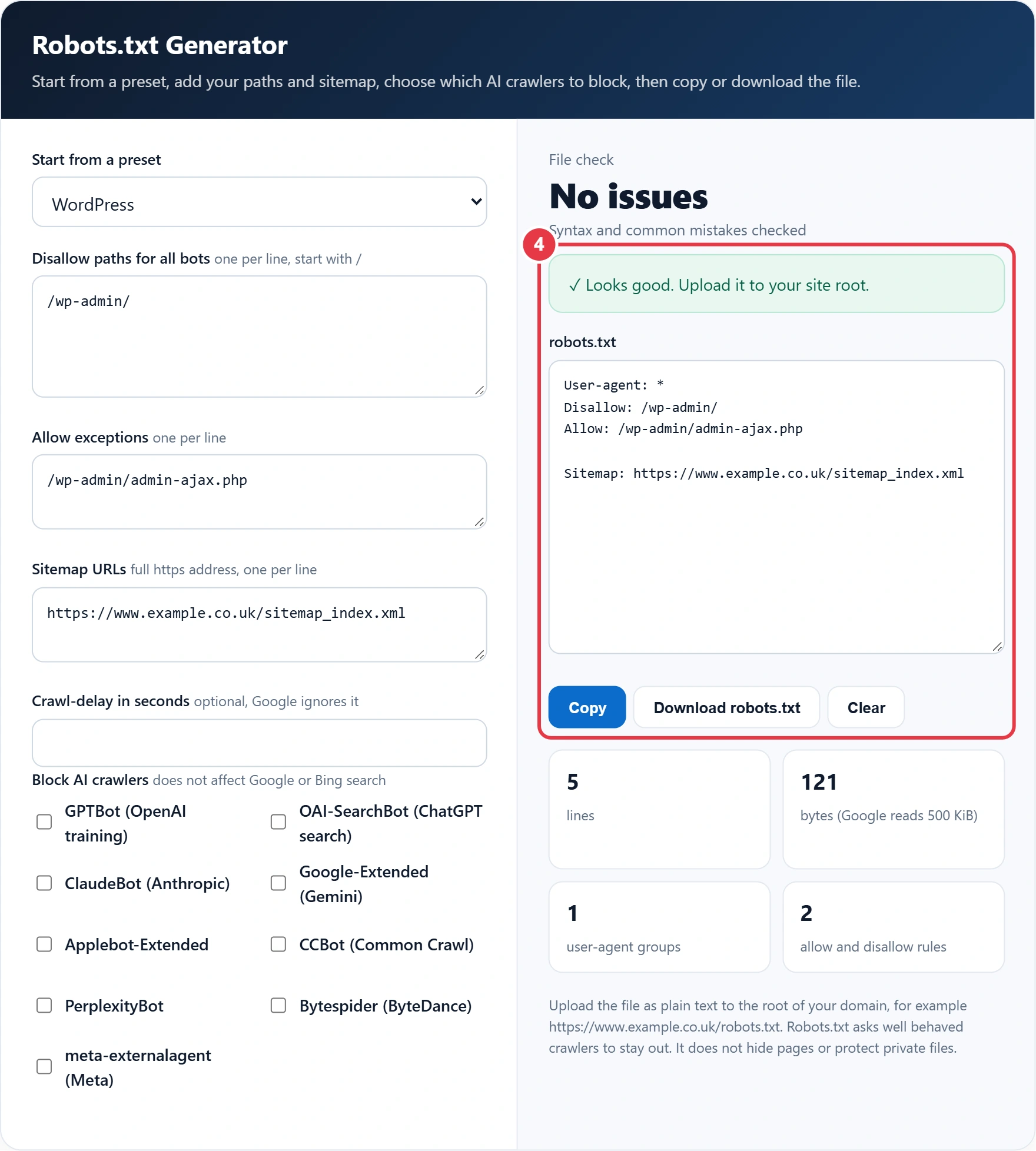
Step 4: Check, Copy or Download
Read the warnings, fix anything in red, then copy the text or download a ready named robots.txt file. Upload it to your web root with your host's file manager or FTP. Most WordPress SEO plugins also have a robots.txt editor where you can paste the text instead.
What Should a Robots.txt File Contain?
Most sites need only three things: a User-agent: * group, Disallow rules for areas with no search value such as admin, basket and account pages, and a Sitemap line. Keep it short, because every extra rule is another chance to block something you need.
Take Ellie, who runs a WooCommerce shop with 2,400 product pages. Her category pages can be sorted five ways through ?orderby= links, which creates up to 5 extra versions of every category listing, all showing the same products. She chooses the WooCommerce preset, which adds Disallow: /*?orderby= along with /cart/, /checkout/ and /my-account/. Crawlers now spend their visits on her 2,400 products instead of sorted duplicates, and the check panel confirms no CSS or JavaScript is blocked.
| Rule | What it does |
|---|---|
| Disallow: /wp-admin/ | Keeps crawlers out of the WordPress dashboard |
| Allow: /wp-admin/admin-ajax.php | Lets themes and plugins that use AJAX keep working for crawlers |
| Disallow: /*?orderby= | Blocks any URL containing a sort parameter |
| Disallow: /*.pdf$ | Blocks URLs that end in .pdf |
| Disallow: | An empty rule, meaning everything is allowed |
| Disallow: / | Blocks the entire site |
Robots.txt Examples You Can Copy
Each example below is a complete file. Replace the sitemap address with your own, or load the matching preset in the robots.txt generator and edit it there so the checks run on your version.
- Allow everything: User-agent: * then an empty Disallow: line, then Sitemap: https://www.example.co.uk/sitemap.xml. Ideal for small sites with nothing to hide from crawlers.
- WordPress blog: User-agent: *, Disallow: /wp-admin/, Allow: /wp-admin/admin-ajax.php, then your sitemap. Add Disallow: /?s= only if internal search pages are being crawled heavily.
- Staging site: User-agent: * and Disallow: /, plus a password on the whole site, because robots.txt alone will not keep a staging copy private.
- Block one crawler only: a separate group such as User-agent: GPTBot with Disallow: /, left above or below your main User-agent: * group.
How to Test Your Robots.txt After Uploading
Open yoursite.co.uk/robots.txt in a private browser window and check that the text matches what you uploaded, with no HTML around it. A 404 means the file is in the wrong folder; a server error is worse, because Google may pause crawling while it cannot read the file. Then test two or three important URLs, such as your home page, a product and a blog post, to confirm they are still allowed for Googlebot.
Should You Block AI Crawlers in Robots.txt?
It depends on whether you want your content used to train or power AI tools. Blocking GPTBot, ClaudeBot or CCBot keeps those crawlers out of future training collections, while Google-Extended controls whether Google uses your pages for Gemini models without changing how Googlebot crawls for Search. OAI-SearchBot and PerplexityBot fetch pages to answer live questions, so blocking them can also remove your site from those answer engines, which may cost you referral visits. Tokens change as companies launch new crawlers, so check each provider's documentation once a year.
Rules Google Ignores or Treats Differently
- Crawl-delay is ignored by Googlebot, although Bing and some others respect it.
- Noindex inside robots.txt has not been supported since 1 September 2019. Use a robots meta tag instead, which the meta tag generator can write for you.
- Disallow stops crawling, not indexing. A blocked URL can still appear in results, without a description, if other sites link to it.
- Google reads only the first 500 KiB of the file and usually caches it for up to 24 hours.
- Robots.txt is public. Never list secret folders in it, and protect private areas with a password.
These behaviours follow the Robots Exclusion Protocol, published by the IETF as RFC 9309 in 2022, which most major search engines now follow. After uploading, open the robots.txt report in Google Search Console to confirm Google fetched the new version without errors.
Robots.txt Generator Terms Explained
These crawling terms explain the directives the robots.txt generator writes, helping you control which parts of your site search engines and AI crawlers can request.
- User-agent line
- The line naming which crawler a group of rules applies to, matched against the bot's product token. An asterisk addresses every crawler that does not have a more specific group of its own elsewhere in the file.
- Disallow directive
- A rule telling compliant crawlers not to request URLs whose path begins with the given value. A lone forward slash blocks the entire site, which is why staging presets use it and live sites must never publish it by mistake.
- Sitemap directive
- A line giving the full address of an XML sitemap so crawlers can discover the URLs listed in it. It sits outside the user-agent groups, applies to every bot and may be repeated for several different sitemaps.
- Crawl budget
- The number of URLs a search engine is willing and able to fetch from a site within a given period. Blocking low-value paths such as internal search results or admin areas steers that attention towards the pages that matter.
- AI training crawler
- A bot that collects web content to train large language models rather than to build a search index, such as GPTBot or CCBot. Blocking these in robots.txt has no effect on how pages rank in ordinary web search.
</>Embed this calculator on your website
Add the free Robots.txt Generator to your own site or blog. Copy the code below and paste it into an HTML block. It resizes itself and works on phones.
How we checked this tool: the Tools Veria Editorial Team built this tool by hand, checked it against the official rules or published standards where they apply, and tested it against worked examples. Results are estimates for planning, not personal financial or tax advice. Read our editorial policy and disclaimer, or report an error.
Frequently Asked Questions
Does robots.txt stop a page appearing in Google?
No. Robots.txt stops crawling, not indexing, so a blocked page can still be listed if other sites link to it. To keep a page out of results, allow crawling and add a noindex robots meta tag.
Where do I put my robots.txt file?
Upload it to the root of your domain so it loads at https://www.yoursite.co.uk/robots.txt. A file in a subfolder is ignored, and each subdomain needs its own robots.txt.
Does Google follow Crawl-delay?
No. Googlebot ignores Crawl-delay and adjusts its crawl rate automatically based on how quickly your server responds. Bing and some other crawlers do respect it, with the value given in seconds.
Does blocking Google-Extended affect my Google rankings?
No. Google-Extended only controls whether your content is used for Gemini and related AI models. Googlebot still crawls and ranks your pages in Search exactly as before.
What does Disallow with nothing after it mean?
An empty Disallow: line means nothing is blocked, so the named crawler may visit every URL. It is the same as having no rules for that user agent, and is a common way to say allow everything.
Does WordPress create a robots.txt automatically?
Yes. WordPress serves a virtual robots.txt that blocks /wp-admin/ and allows admin-ajax.php. Uploading a real robots.txt file to your web root replaces the virtual one completely.