Paste a robots.txt file to check every line, then test whether a URL is allowed for a chosen crawler.
| Group (line) | User agents | Rules |
|---|
Checks follow Google's documented rules and RFC 9309. Other crawlers may read edge cases differently. Your text stays in your browser and is never uploaded.
This robots.txt validator checks a robots.txt file line by line and tells you whether a specific URL is allowed or blocked for Googlebot, Bingbot or an AI crawler. It applies the matching rules in Google's robots.txt specification, so the verdict mirrors how Google reads your file, and it is built for site owners, SEOs and developers who want to test a draft before it goes live.
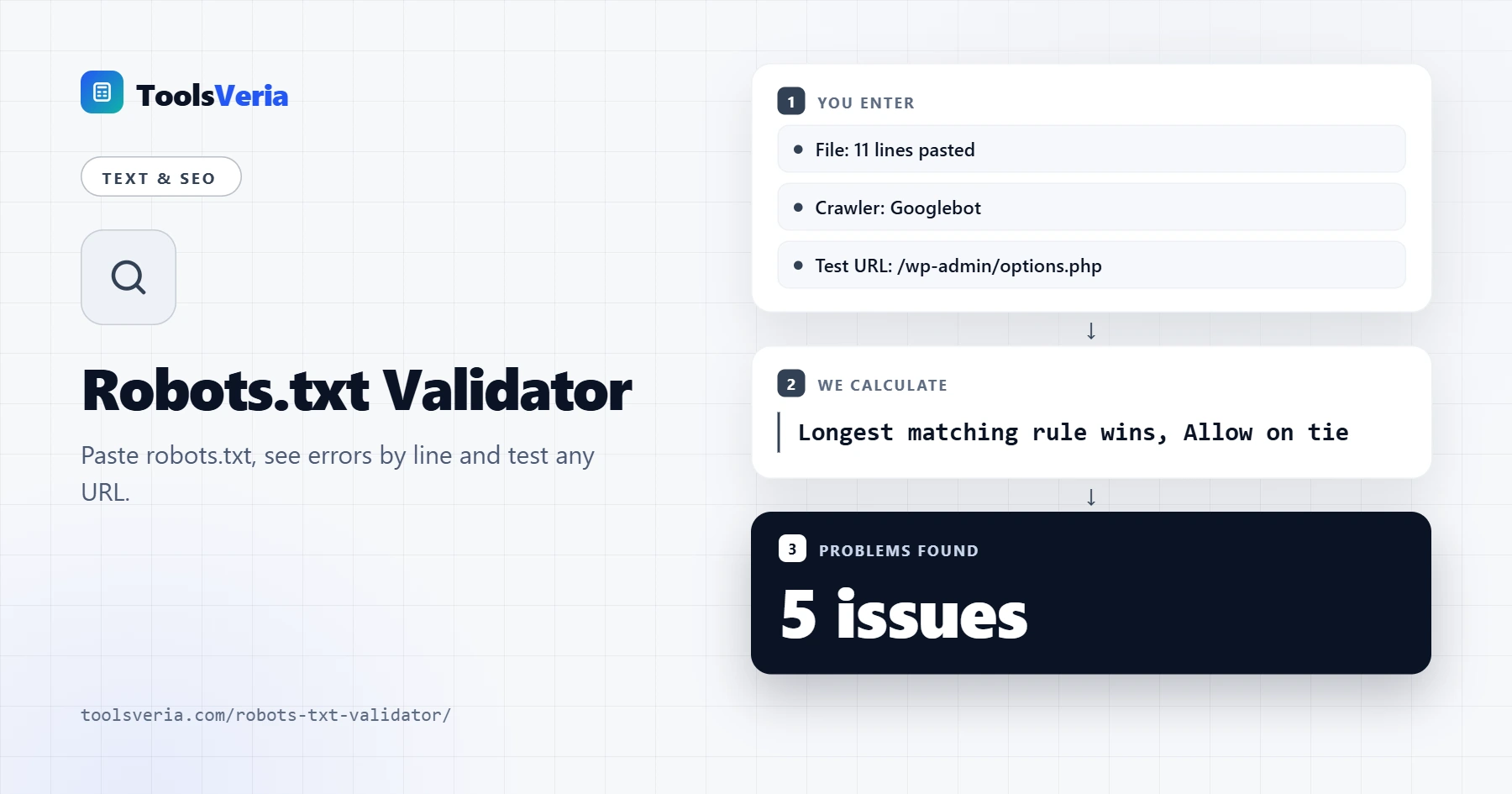
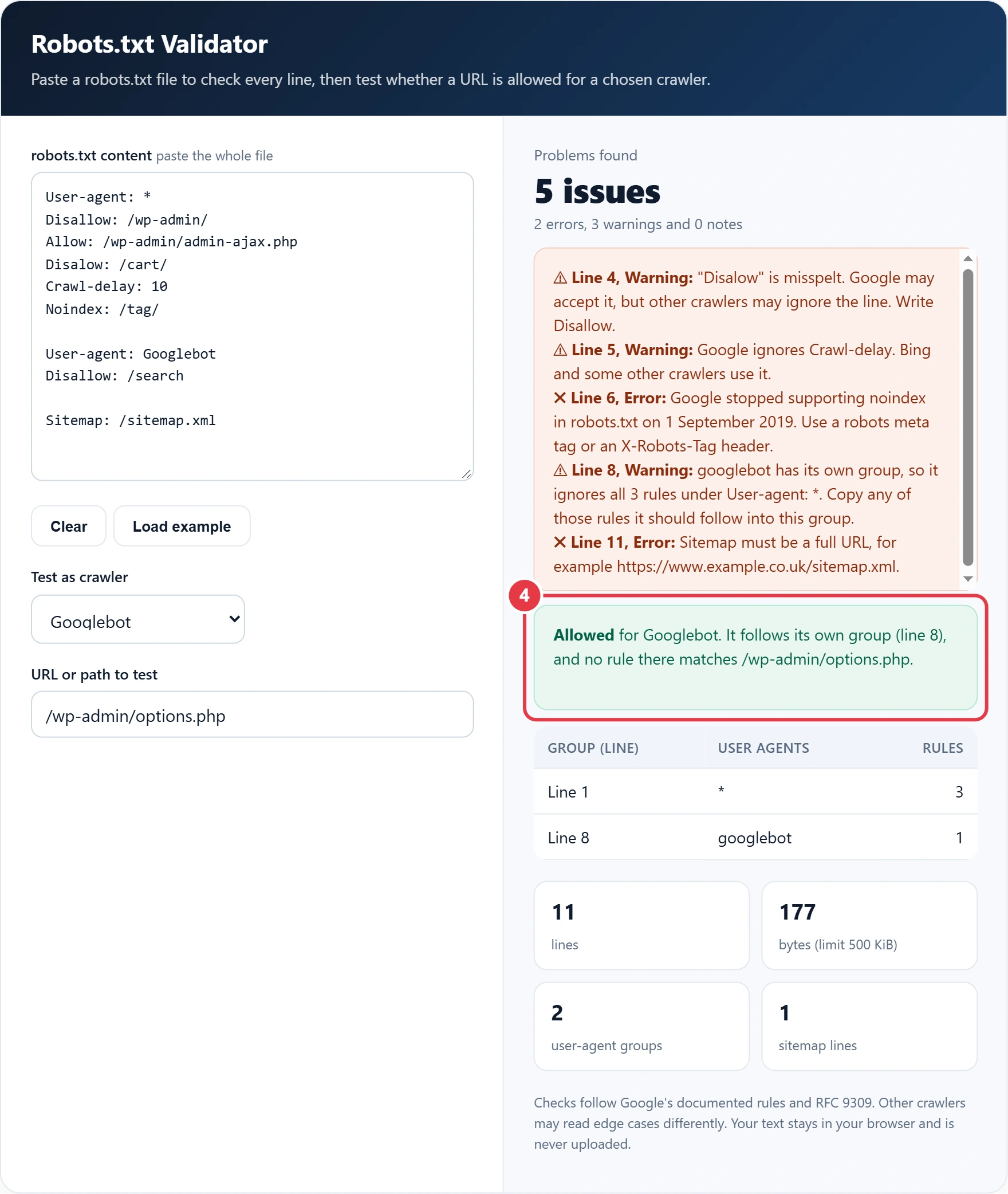
Quick answer: paste your file into the robots.txt validator and it lists every error with its line number, such as a misspelt Disallow, a noindex line or a relative sitemap URL. Then enter a URL: the most specific crawler group applies, the longest matching rule wins, and Allow beats Disallow on a tie.
In This Guide
What Is a Robots.txt Validator?
A robots.txt validator is a tool that reads a robots.txt file the way a search engine crawler does and reports syntax mistakes, unsupported directives and rules that block more than you intended. It turns a file that fails silently into a list of fixes you can act on.
Crawlers never tell you when they skip a line. A typo, a rule placed above the first User-agent line or a path written as a full URL is simply ignored, and you only find out weeks later when pages drop out of search. This checker parses each line into a field and a value, groups the rules under their User-agent lines, and then runs the same precedence logic Google uses: the crawler picks its most specific group, and within that group the rule with the longest matching path decides. Errors break or void a line, warnings point to behaviour you may not expect, and notes are suggestions.
How to Use the Robots.txt Validator
Step 1: Paste Your Robots.txt File
Open yoursite.co.uk/robots.txt in your browser, select all and paste it into the box, or paste a draft you have not uploaded yet. Browser security stops a web page reading another site's files directly, so pasting is also the most private option: nothing leaves your device.
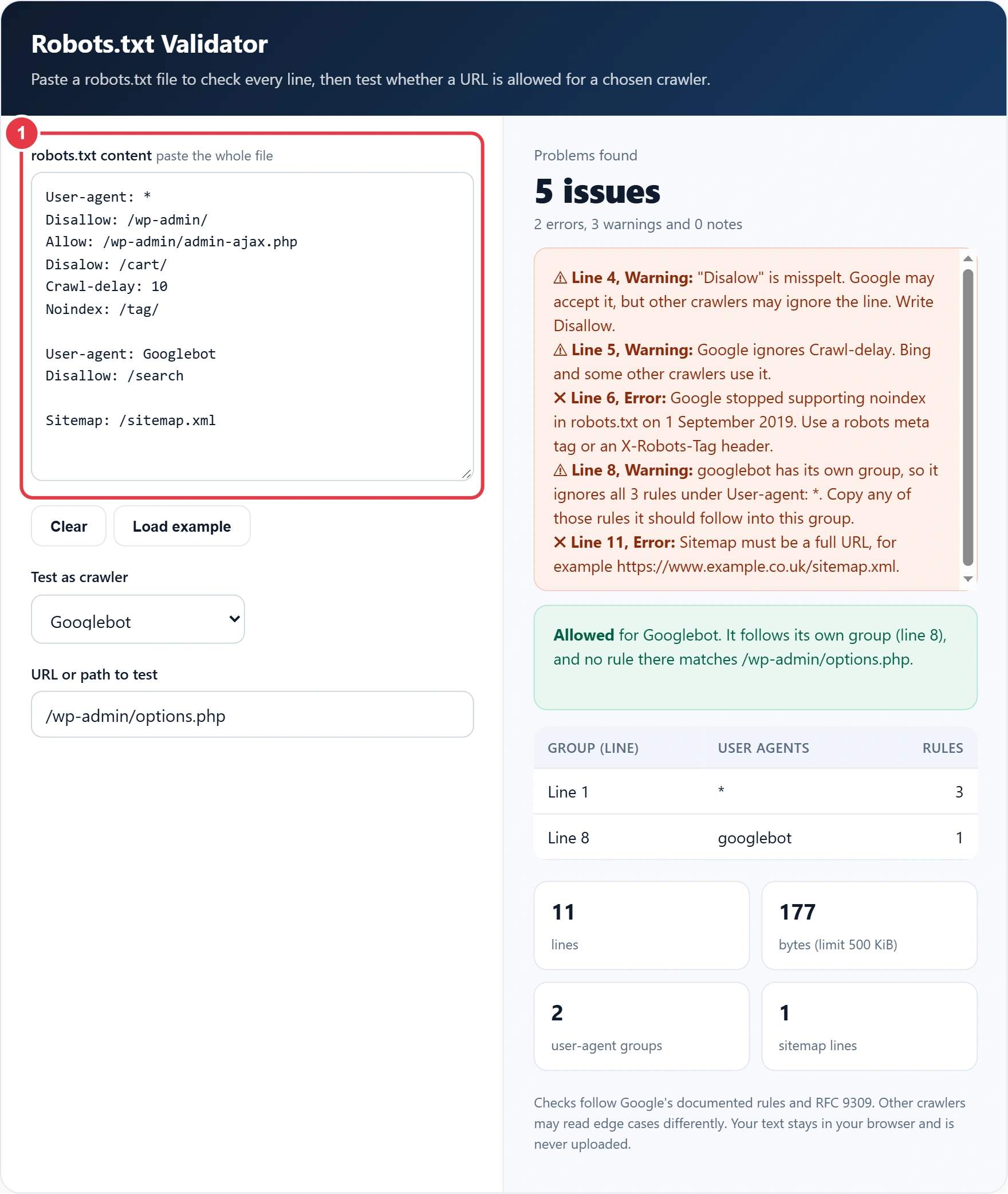
Step 2: Read the Errors by Line
Each problem shows its line number, its severity and a fix. Work through errors first, because those lines are ignored or broken. The group table underneath shows which crawlers have their own rules, which is where the most expensive mistakes hide.
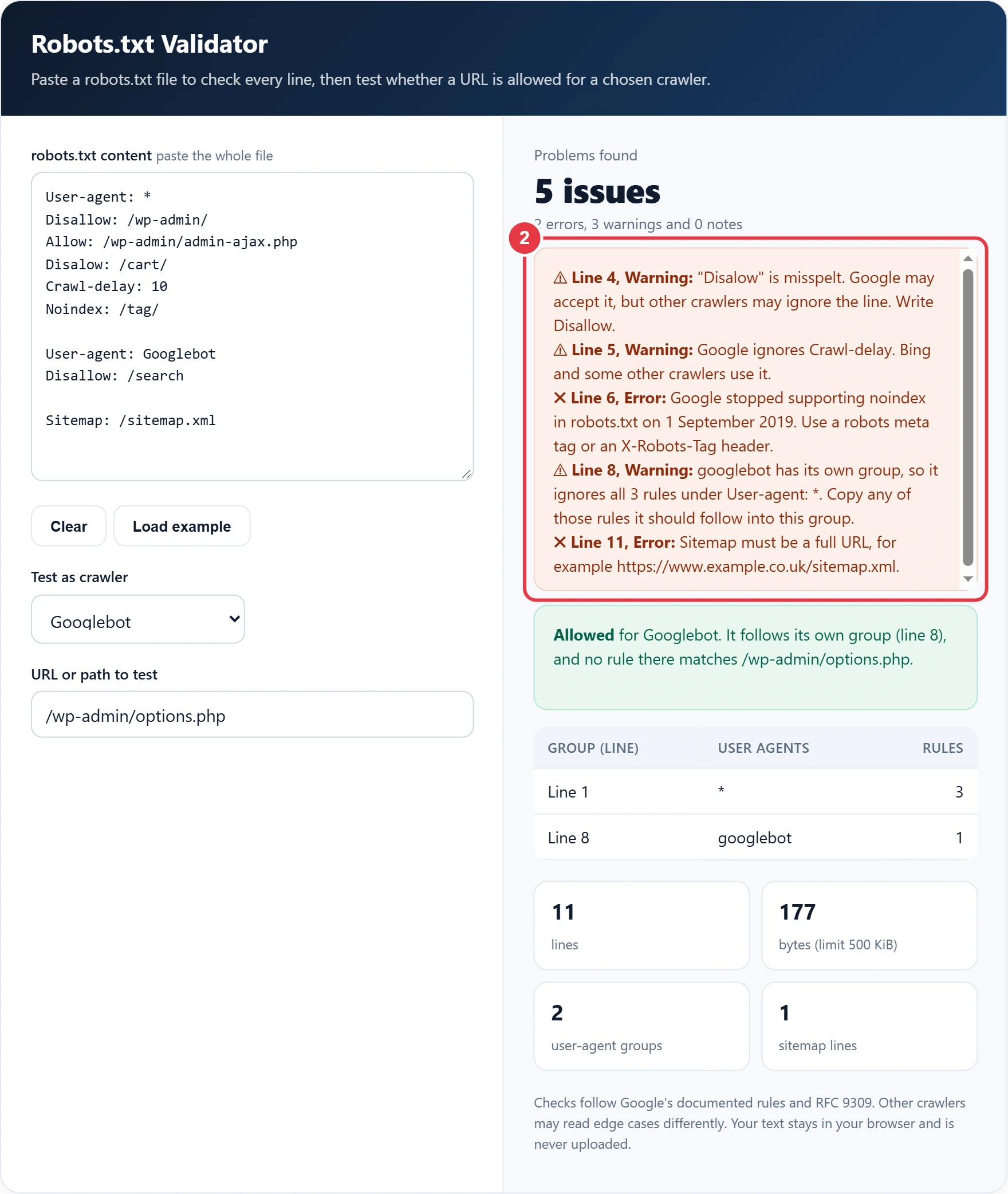
Step 3: Test a URL as a Crawler
Pick a crawler, or choose Custom and type any user agent token, then enter a full URL or just the path. Query strings count, so test /shop/?orderby=price as well as /shop/ if you use parameter rules.
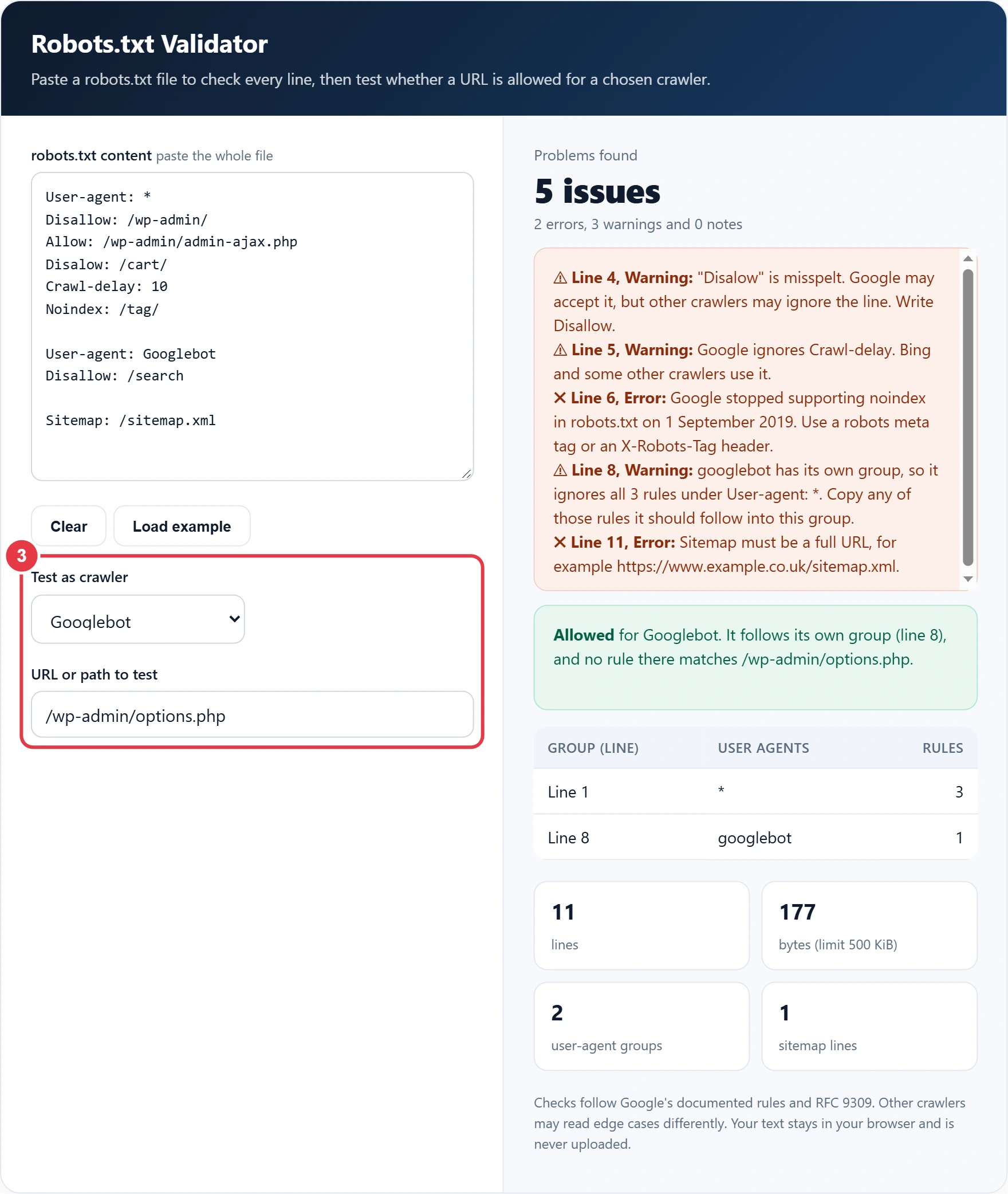
Step 4: Read the Verdict and Fix the File
The verdict says Allowed or Blocked and names the exact line that decided it, plus the group the crawler followed. Edit the text and the result updates as you type. To rebuild a messy file from scratch, the robots.txt generator creates a clean version with the same checks built in.
Why Is My Page Blocked by Robots.txt?
Usually a Disallow rule is shorter than intended, so it matches more URLs than you meant, or the crawler is following a different group from the one you edited. Rules match from the start of the path, so Disallow: /p blocks /p/, /products/ and /pricing/ alike.
Here is a worked example. Tom runs an online shop with 1,850 product pages under /products/. He wanted to hide 40 old short links under /p/, so he added Disallow: /p. Search Console soon reported hundreds of product pages as blocked. Pasting the file here and testing /products/oak-bench/ as Googlebot gives Blocked, by line 3: Disallow: /p. Changing the rule to Disallow: /p/ with the trailing slash fixes it: the 40 short links stay blocked and all 1,850 products are allowed again.
The second common cause is a crawler specific group. As soon as a file contains User-agent: Googlebot, Googlebot ignores everything under User-agent: * and follows only its own rules. In the example loaded in the tool, /wp-admin/ is blocked for other bots but allowed for Googlebot, which is rarely what the site owner wanted.
Common Robots.txt Errors and How to Fix Them
| Problem | Example | Fix |
|---|---|---|
| Misspelt field | Disalow: /cart/ | Disallow: /cart/ |
| Noindex line | Noindex: /tag/ | Use a robots meta tag on the page |
| Relative sitemap | Sitemap: /sitemap.xml | Sitemap: https://www.example.co.uk/sitemap.xml |
| Full URL as a path | Disallow: https://site.co.uk/admin/ | Disallow: /admin/ |
| Rule before any group | Disallow: /tmp/ on line 1 | Put User-agent: * above it |
| Over broad prefix | Disallow: /p | Disallow: /p/ |
| Version in user agent | User-agent: Googlebot/2.1 | User-agent: Googlebot |
| Blocked resources | Disallow: /wp-content/ | Remove it so CSS and images load |
If you used a noindex line to keep pages out of results, replace it with a robots meta tag on each page. The meta tag generator writes that tag for you, and the page must stay crawlable so Google can actually see it.
Robots.txt Validator or Search Console: Which Should You Use?
Use both, at different moments. The robots.txt validator on this page is best before you publish, because it checks a draft instantly, explains each problem in plain English and lets you test any crawler, including Bingbot and AI bots. The robots.txt report in Search Console is best after you publish: it shows the exact version Google last fetched, when it fetched it and whether the request failed.
A simple routine works well. Draft your changes, paste them here and test five or six key URLs, such as the home page, a category, a product, a blog post and any parameter URL you mean to block. Upload the file, open it in a browser to confirm it is live, then check the Search Console report a day later.
How Google Reads Your Robots.txt
- Field names such as Disallow are case insensitive, but paths are case sensitive: /Shop/ and /shop/ are different.
- Only * (any characters) and $ (end of URL) are special in paths.
- When several groups name the same crawler, Google merges their rules.
- Google reads the first 500 KiB of the file and usually caches it for up to 24 hours.
- A 404 for robots.txt means no restrictions. A server error can make Google pause crawling until the file is reachable.
- Crawl-delay is ignored, and noindex has not been supported since September 2019.
These rules come from the Robots Exclusion Protocol, standardised in 2022 as RFC 9309, which Bing and other large crawlers also follow. Edge cases such as percent encoded characters can still differ between crawlers, so after any change, confirm the live file in the robots.txt report inside Google Search Console.
What the Key Robots.txt Validator Terms Mean
These technical terms explain how the robots.txt validator reads and judges your file, so you can fix errors and predict exactly how each URL is treated.
- Robots Exclusion Protocol
- The standard, formalised as RFC 9309, that defines how robots.txt files are written and how crawlers should interpret them. It covers file location, grouping, path matching and what happens when a file is unreachable or too large.
- Longest match rule
- The precedence principle under which the rule whose path matches the most characters of a URL wins within a group. When an Allow and a Disallow match with equal length, Google follows the less restrictive Allow rule.
- Wildcard
- A special character used in robots.txt paths. The asterisk matches any sequence of characters, while a dollar sign marks the end of a URL, allowing a single rule to cover file types or recurring parameter patterns.
- Unsupported directive
- A line that crawlers do not recognise, such as a noindex instruction placed inside robots.txt. Such lines are silently ignored, so the behaviour they were meant to produce never happens and pages stay indexed.
- File size limit
- The maximum amount of a robots.txt file Google will process, 500 KiB, with anything beyond that point ignored. A file approaching this size usually contains redundant rules that should be merged into simpler patterns.
</>Embed this calculator on your website
Add the free Robots.txt Validator to your own site or blog. Copy the code below and paste it into an HTML block. It resizes itself and works on phones.
How we checked this tool: the Tools Veria Editorial Team built this tool by hand, checked it against the official rules or published standards where they apply, and tested it against worked examples. Results are estimates for planning, not personal financial or tax advice. Read our editorial policy and disclaimer, or report an error.
Frequently Asked Questions
What happens if my site has no robots.txt file?
If robots.txt returns a 404, crawlers treat the site as having no restrictions and may crawl every URL. That is fine for many small sites, though adding a file with a Sitemap line is still good practice.
Which wins when Allow and Disallow both match a URL?
Google uses the rule with the longest matching path. If an Allow and a Disallow rule are exactly the same length, the Allow rule wins because it is the less restrictive option.
Why does Googlebot ignore my User-agent: * rules?
Googlebot follows only the most specific group that names it. If your file has a User-agent: Googlebot group, every rule under User-agent: * is ignored for Googlebot, so copy any shared rules into its group.
How often should I check my robots.txt file?
Check it after every site migration, theme or plugin change, and at least every three months. A single changed line can block thousands of pages, so a quick test of your key URLs is worth the two minutes.
Can a robots.txt validator check my live site directly?
Browser based tools cannot read another site's robots.txt because of cross origin security, so this validator works on pasted text. Open yoursite.co.uk/robots.txt, copy all of it and paste it in to check the live version.
Is robots.txt case sensitive?
Paths are case sensitive, so Disallow: /Admin/ does not block /admin/. Field names such as User-agent and Disallow, and the crawler names themselves, are not case sensitive.