See how your title, URL and meta description could appear in search results.
Pixel widths are estimates measured with 20px Arial for titles and 14px Arial for descriptions. Search engines can rewrite titles and snippets, so treat this as a guide rather than a guarantee.
Your title and meta description are the first things a searcher reads, often before they know anything else about your brand. This SERP preview tool shows how a page could look in the results, measures the title and description in pixels rather than just characters, and warns you when text is likely to be cut short. Google explains in its documentation on title links how it chooses what to show, and this preview helps you write titles that follow that advice.
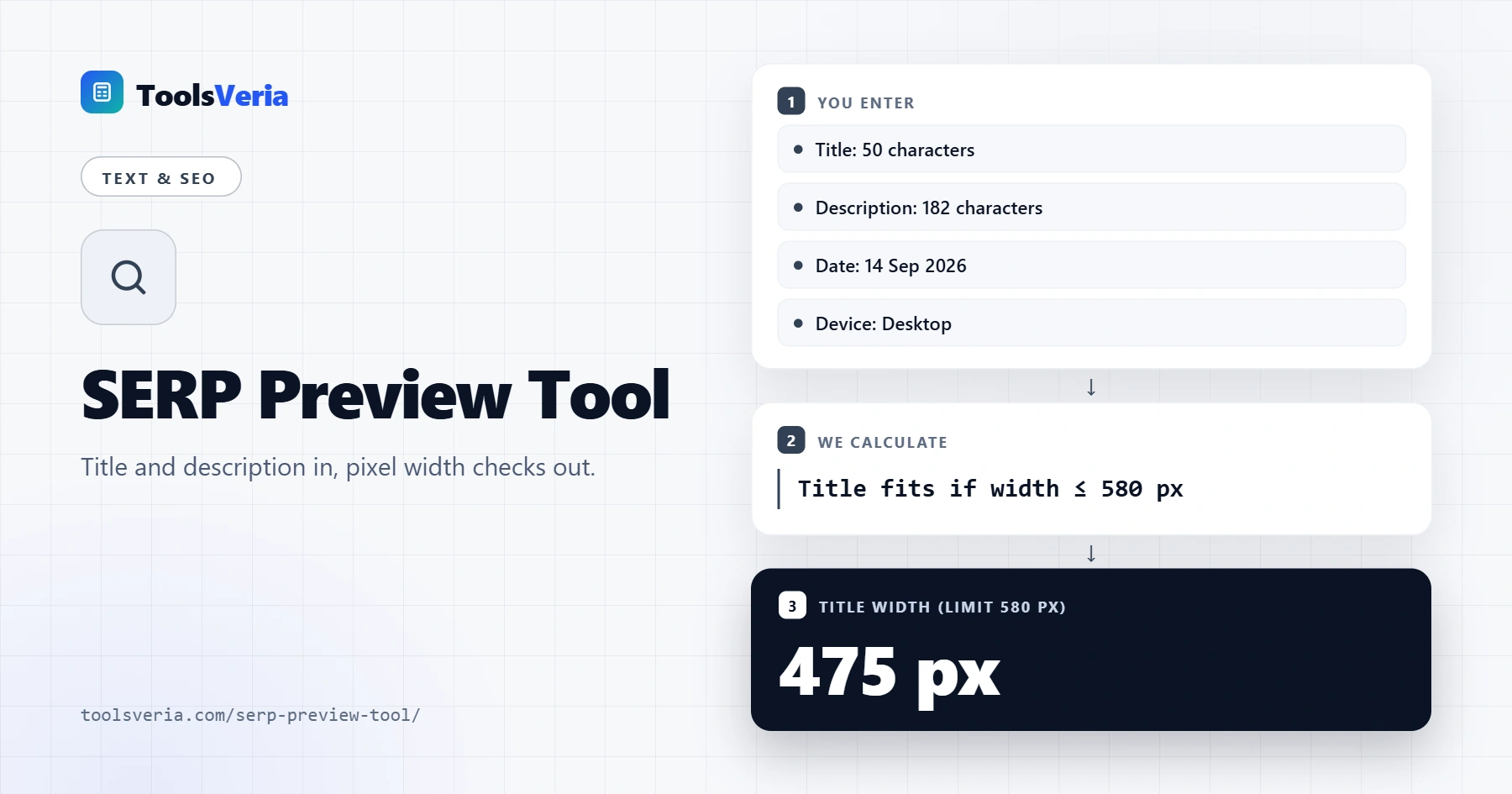
What Is a SERP Preview?
SERP stands for search engine results page. A SERP preview is a simulation of a single result: the site name, a breadcrumb style URL, the clickable blue title and the grey description underneath. It lets you check spelling, length and wording before a page goes live, without waiting for it to be crawled.
Results are limited by width, not by a fixed number of characters. A title full of wide letters such as W and M fills the space faster than one with i and l. The tool measures your text with the browser's canvas API at 20px Arial for titles and 14px Arial for descriptions, then compares it with typical desktop limits of about 580 px and 920 px. If text is too wide, it is trimmed at the last whole word and "..." is added, just as you will often see in real results.
How to Use the SERP Preview Tool
Step 1: Enter Your Page Title
Type or paste the title tag. The bar under the box fills as you type and turns red once the title passes roughly 580 px. Once the wording fits, the meta tag generator turns your final title and description into ready to paste HTML tags.
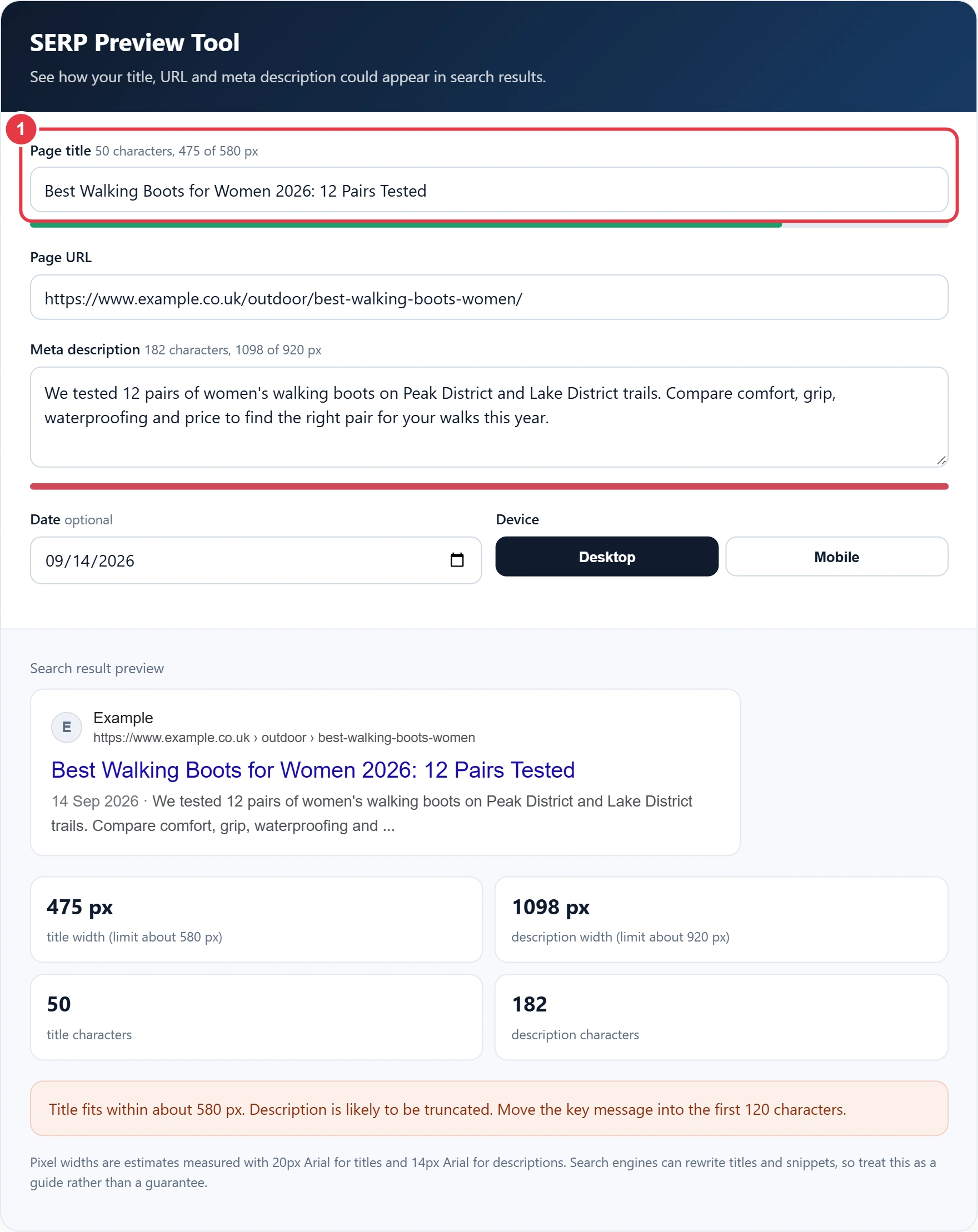
Step 2: Add the URL and Meta Description
Paste the full page URL so the tool can build the site name and breadcrumb path. If you are still choosing the address, the slug generator turns a headline into a short, clean URL slug that reads well in the breadcrumb. Then add your meta description and check its own width bar.
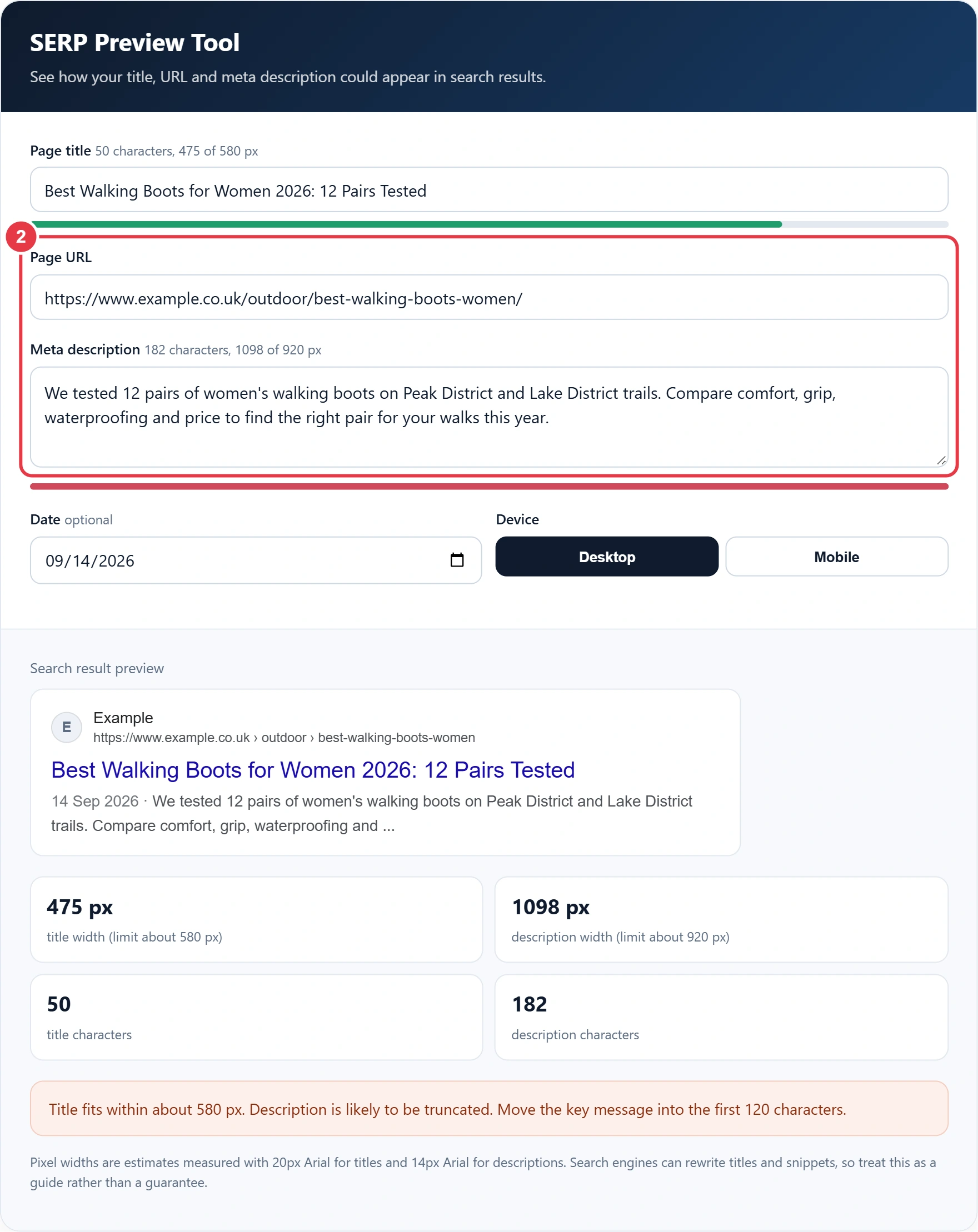
Step 3: Set a Date and Device
Add a date if your result usually shows one, such as a news story or blog post. The date takes up part of the description line, so less room is left for your text. Switch to Mobile to see the narrower layout.
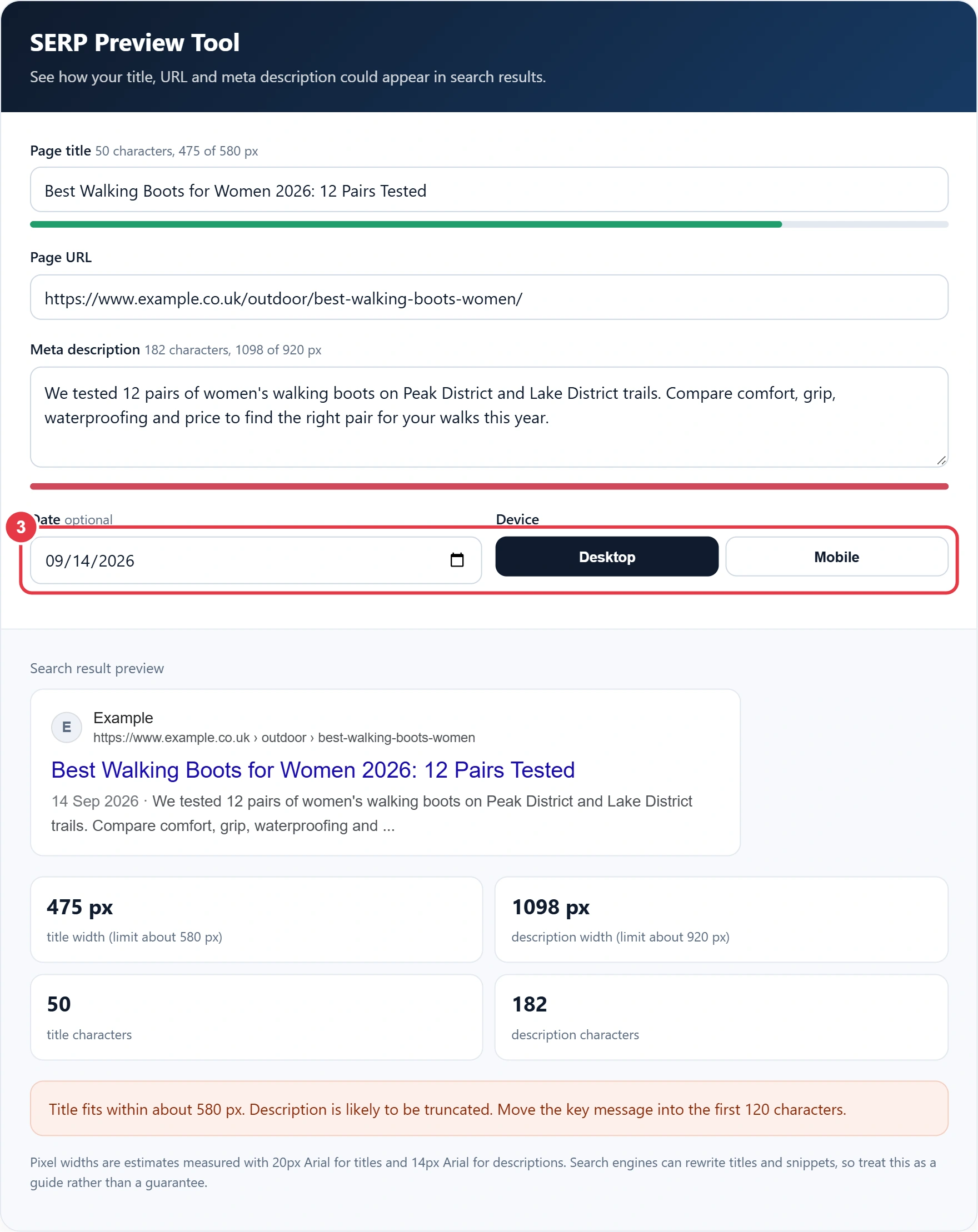
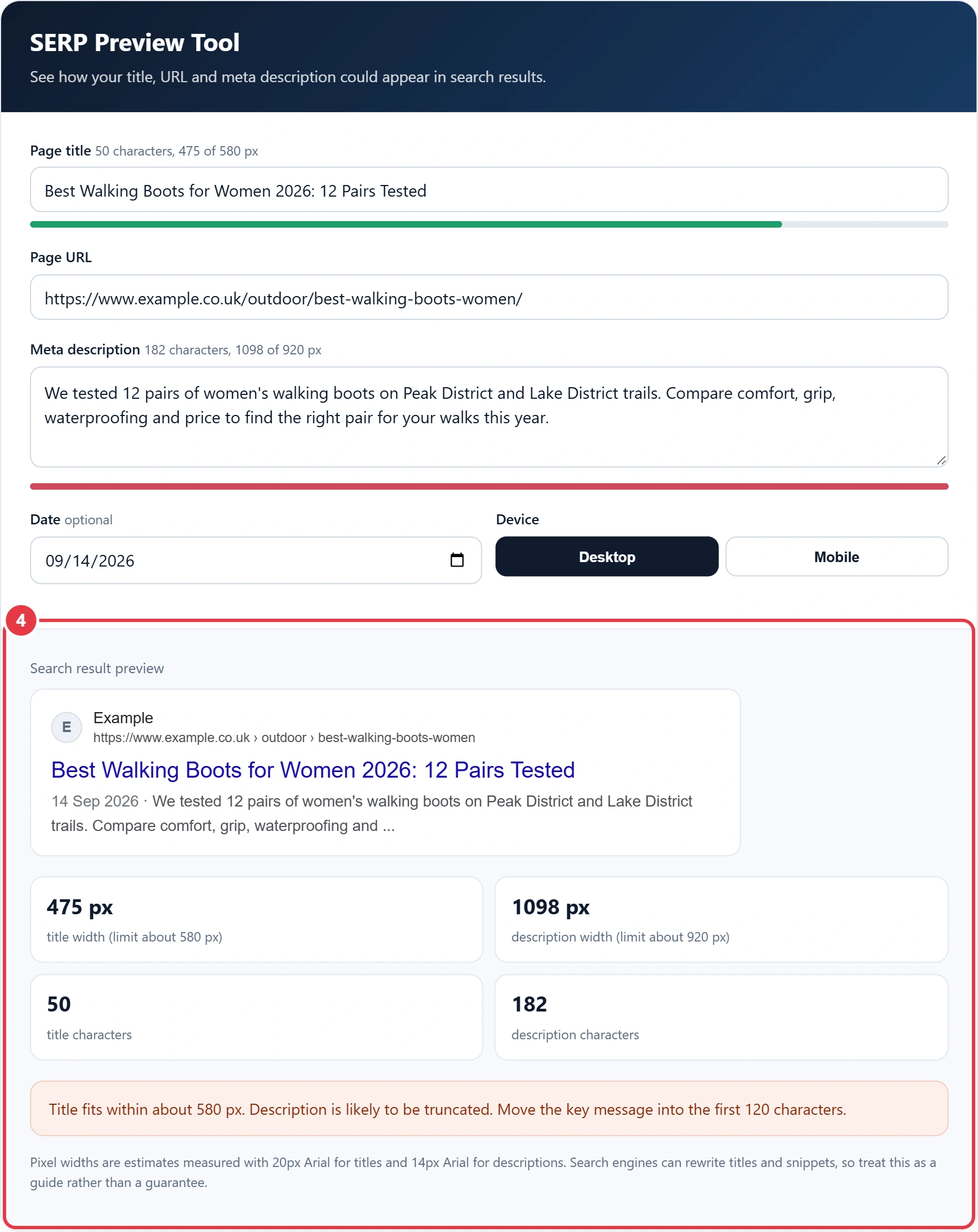
Step 4: Review the Preview and Checks
The preview updates live. Below it you will find pixel widths, character counts and a short verdict telling you whether each part fits or needs trimming.
Tips for Titles and Descriptions That Fit
- Put the main keyword near the start of the title so it survives any truncation.
- Aim for roughly 50 to 60 characters in a title, but trust the pixel bar over the count.
- Keep descriptions to about 120 to 160 characters and lead with the benefit.
- Write a unique title and description for every page rather than repeating a template.
- Use your brand name at the end of the title, where it matters least if it gets cut.
Search engines do not always use your meta description. Google often builds a snippet from the page content when it better matches the search, as described in its guide to snippets, so make sure your opening paragraph is clear and useful too.
Frequently Asked Questions
How long should a title tag be?
There is no fixed character limit. Titles up to about 580 px wide usually display in full on desktop, which is roughly 50 to 60 characters.
How long should a meta description be?
Aim for about 120 to 160 characters. Longer descriptions are often truncated, so put the key message first.
Why is my title different in Google?
Google can rewrite titles when it thinks another version describes the page better, for example using a heading from the page.
Why measure in pixels rather than characters?
Results are cut off by display width. Wide letters take more space than narrow ones, so two titles with the same character count can fit differently.
Does the mobile preview use different limits?
Mobile results are narrower and titles can wrap onto a second line. Use the desktop limits as a safe target for both.
Is this tool connected to Google?
No. It is an independent simulation that runs in your browser. Nothing you type is sent anywhere.