A private image resizer: resize by pixels, percentage or preset, then download. Nothing is uploaded.
Your image is processed with the canvas element on your own device and never leaves it. Photo location data (EXIF) is removed from the saved file.
This image resizer changes the width and height of a photo or graphic directly in your browser, so you can make images fit a website, an email or a social media post without installing software. Resize by exact pixels, by percentage or with a ready made social preset, then save as JPG, PNG or WebP. The resizing runs on your device through the HTML canvas drawImage method, which means your photo is never uploaded to a server, and it suits users in the UK, US, Europe and anywhere else.
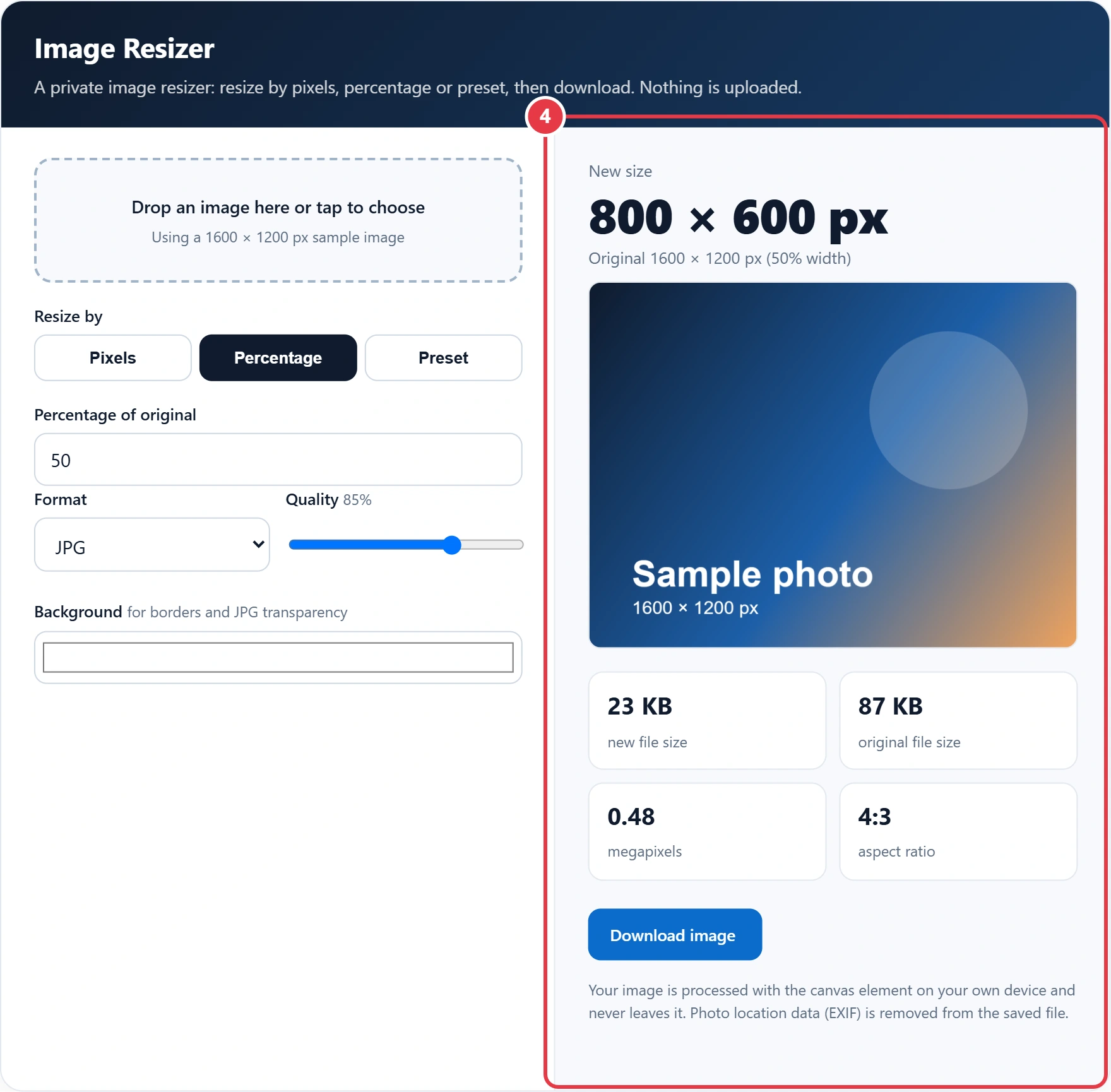
Quick answer: To resize an image, drop it into the image resizer, choose a new width and height or a percentage, and download the result. Keeping the aspect ratio stops stretching: a 1600 × 1200 photo resized to 50% becomes 800 × 600 pixels, a quarter of the original pixel count and usually a much smaller file.

In This Guide
What Is an Image Resizer?
An image resizer is a tool that changes the pixel dimensions of a picture by resampling it, which means calculating new pixels from the old ones. Making an image smaller combines several pixels into one; making it larger has to invent pixels, which is why enlarging can look soft.
To keep the shape, the height follows the width: new height = new width × original height ÷ original width. A 4032 × 3024 phone photo resized to 1200 pixels wide therefore becomes 1200 × 900. A percentage resize multiplies both sides by the same factor, and file size falls roughly with the pixel count.
How to Use the Image Resizer
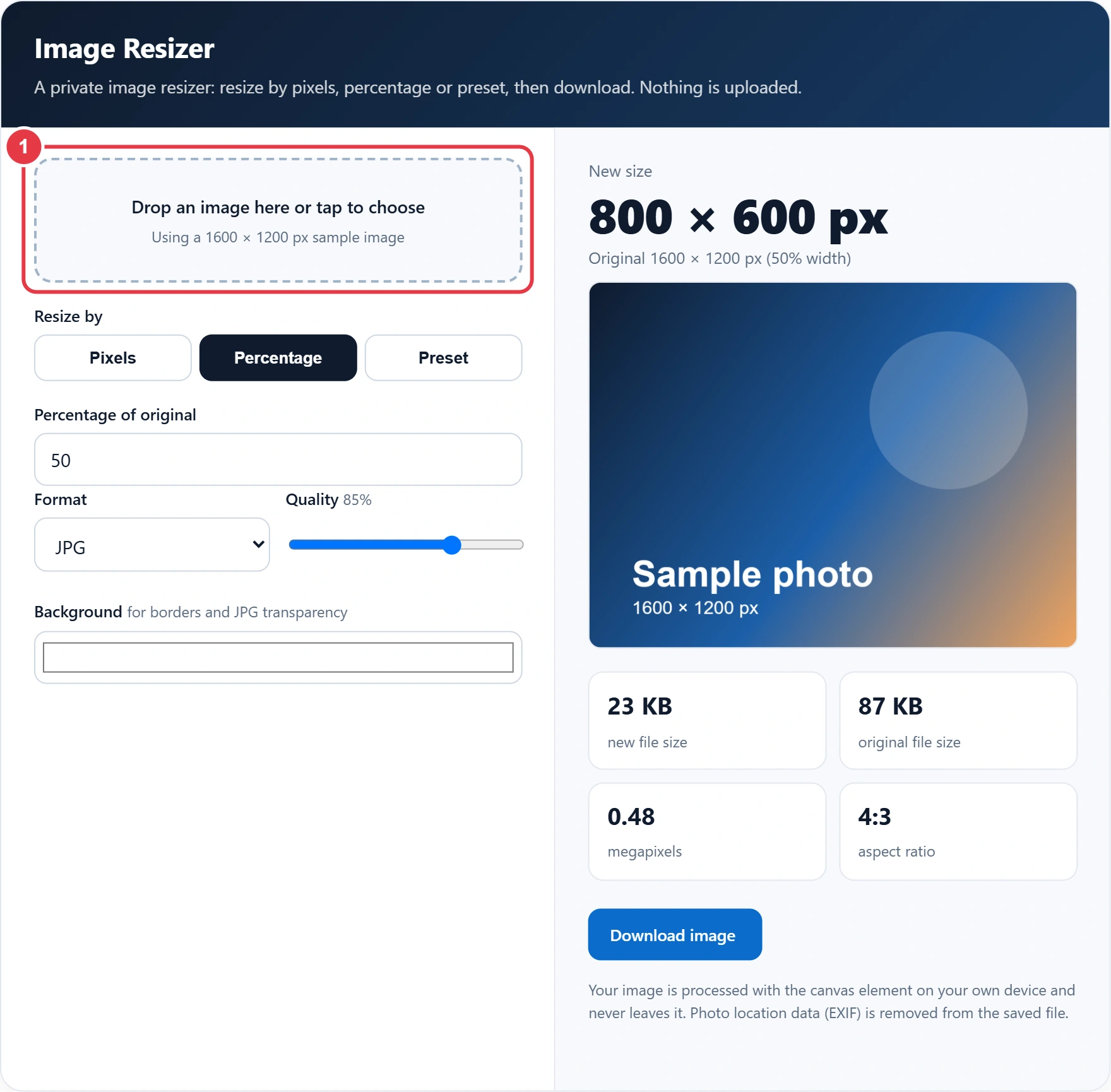
Step 1: Drop In Your Image
Drag a JPG, PNG, WebP or GIF onto the dashed area, or tap it to pick a file from your phone or computer. Until you add one, a 1600 × 1200 sample image shows how the photo resizer works.
Step 2: Choose the New Size
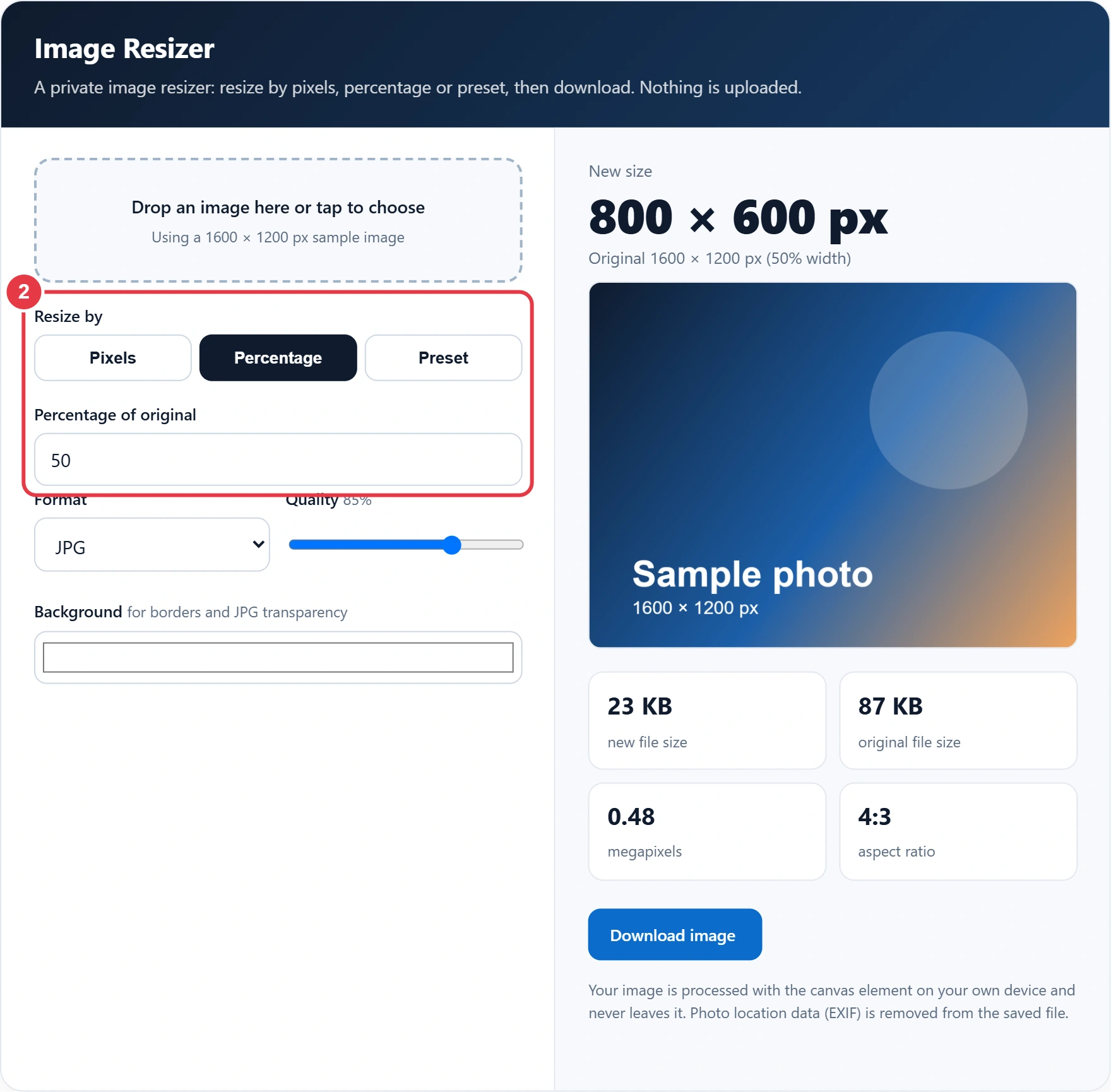
Pick Pixels for exact dimensions, with Keep aspect ratio ticked so the other side updates automatically. Choose Percentage to scale both sides at once, or Preset for social sizes, with fill and crop, fit with a border, or stretch.
Step 3: Pick the Format and Quality
JPG suits photos and gives small files, PNG keeps transparency and sharp text, and WebP usually gives the smallest file of the three. A JPG or WebP quality of 80% to 85% is hard to tell apart from 100% on screen.

Step 4: Check and Download
The image resizer preview shows the resized image with its new dimensions, file size, megapixels and aspect ratio. Press Download image to save it. If you need the image as code for an email template or CSS, the image to Base64 converter turns the saved file into a data URI you can paste straight in.
What Size Should Images Be for Social Media?
To resize image files for social media, note that most platforms work best with images 1080 to 1920 pixels on the long side, in the shape each feed expects. The presets in this tool use these common sizes, checked October 2026; platforms change their advice, so treat them as safe defaults.
| Use | Size (pixels) | Aspect ratio |
|---|---|---|
| Instagram square post | 1080 × 1080 | 1:1 |
| Instagram portrait post | 1080 × 1350 | 4:5 |
| Story or Reel | 1080 × 1920 | 9:16 |
| Open Graph link preview | 1200 × 630 | About 1.91:1 |
| X post image | 1600 × 900 | 16:9 |
| YouTube thumbnail | 1280 × 720 | 16:9 |
| LinkedIn banner | 1584 × 396 | 4:1 |
| Full HD screen | 1920 × 1080 | 16:9 |
When the shape differs from your photo, Fill and crop trims the edges evenly and Fit with border adds bars in your chosen colour. To check how a 1200 × 630 image will look when a page is shared, the Open Graph preview tool shows the card before you post it.
How Do I Resize an Image Without Losing Quality?
To resize an image without visible quality loss, make it smaller rather than larger, keep the aspect ratio and save at a quality of about 85%. This photo resizer also halves large images in stages before the final step, which keeps fine detail sharper than a single big jump.
Worked example: Ravi wants to resize image files from his phone for a blog. Each photo is 4032 × 3024 pixels and about 3.5 MB. In Pixels mode he types 1200 as the width and the height fills in as 900. Saved as JPG at 85%, each file drops to a few hundred kilobytes, while 1200 pixels is still wider than most blog columns, so the photos look crisp.
Does Resizing an Image Reduce File Size?
Yes, resizing an image smaller nearly always reduces file size, because there are fewer pixels to store: halving the width and height leaves a quarter of the pixels. The format and quality setting matter too, since the browser's canvas toBlob encoder compresses JPG and WebP far more than PNG.
When you resize image files larger, it works the other way, and enlarging cannot add real detail. Saving also removes EXIF data such as GPS location, which is a privacy bonus for photos you share online. For page speed, describe every resized picture with good alt text, and the image alt tag checker finds any images on a page that are missing it, so you can fix them before search engines and screen readers notice.
Key Image Resizer Terms Explained
These terms explain what the image resizer changes when it scales, crops and saves a picture, and why the file size changes.
- Pixel dimensions
- The width and height of an image counted in pixels, such as 1600 × 1200. Multiplying them gives the total pixel count, so that sample image holds 1.92 million pixels, or 1.92 megapixels.
- Aspect ratio
- The shape of an image, written as width to height. A 1600 × 1200 photo is 4:3, and keeping that ratio when resizing means the new height equals the new width times 1200 divided by 1600.
- Resampling
- The process of calculating new pixel values when an image changes size. Shrinking averages groups of pixels together, while enlarging has to estimate pixels that did not exist, which can soften detail.
- Lossy compression
- A way of shrinking files by discarding detail the eye barely notices, used by JPG and usually by WebP. A quality setting of about 85% keeps photos looking sharp while cutting file size sharply.
- EXIF metadata
- Extra information a camera or phone stores inside a photo, such as GPS location, camera model and date. Images saved by this tool are redrawn on a canvas, so that metadata is not carried over.
</>Embed this calculator on your website
Add the free Image Resizer to your own site or blog. Copy the code below and paste it into an HTML block. It resizes itself and works on phones.
How we checked this tool: the Tools Veria Editorial Team built this tool by hand, checked it against the official rules or published standards where they apply, and tested it against worked examples. Results are estimates for planning, not personal financial or tax advice. Read our editorial policy and disclaimer, or report an error.
Frequently Asked Questions
Is this image resizer free and private?
Yes, it is free with no sign up, and your image never leaves your device. The resizing happens in your browser with the canvas element, so nothing is uploaded to a server and the file is gone when you close the page.
How do I resize an image to a specific size in pixels?
Choose Pixels, type the width you need and let the height fill in automatically with Keep aspect ratio ticked. Untick it to set both sides exactly, but the picture may look stretched if the shape changes.
What is the best format for resized photos?
JPG at about 85% quality is the safest choice for photos because every device opens it. WebP usually gives a smaller file at similar quality, while PNG is best for logos, screenshots and images that need transparency.
Can I make a small image bigger?
Yes, enter a percentage above 100 or larger pixel dimensions, up to 10,000 pixels. Enlarging cannot add real detail, so the result may look soft, especially beyond about 150% of the original size.
Why is my resized PNG larger than the original JPG?
PNG uses lossless compression, which stores every pixel exactly and produces much bigger files for photos. Switch the format to JPG or WebP for photographs, and keep PNG for graphics with flat colours or text.
Does resizing remove location data from my photo?
Yes, the saved image is redrawn on a canvas, so EXIF metadata such as GPS location, camera model and date taken is not copied into the new file. Keep your original if you need that information.