A free image compressor for JPG, PNG and WebP that runs in your browser, so nothing is uploaded.
This image compressor makes photos and graphics smaller for websites, email attachments, online forms and social media, and it works for anyone in the UK, US, Europe or elsewhere without an account. You can compress image files to JPEG or WebP, shrink their pixel width and even aim for a size in kilobytes, while the work is done by the browser's canvas toBlob method on your own device, so your pictures are never uploaded.
Quick answer: To reduce image size, lower the pixel dimensions first and then the quality. Most photos look the same at JPEG quality 70 to 80, and resizing a 4032 pixel wide phone photo to 1920 pixels removes about 77% of its pixels. This image compressor does both in your browser and lets you download each smaller file.
In This Guide
What Is an Image Compressor?
An image compressor is a tool that helps you reduce image size: it lowers the number of bytes an image file uses while keeping it looking as close to the original as possible. Smaller images load faster, use less mobile data and fit under the upload limits of forms and email services.
File size depends on two things: how many pixels the image has and how efficiently each pixel is encoded. Lossy formats such as JPEG and WebP throw away fine detail the eye barely notices, controlled by a quality setting. Lossless formats such as PNG keep every pixel exactly, so they can only shrink a little unless you reduce the dimensions. This tool redraws your image on a canvas at the size you choose and encodes it again.
How to Use the Image Compressor
Step 1: Add Your Images
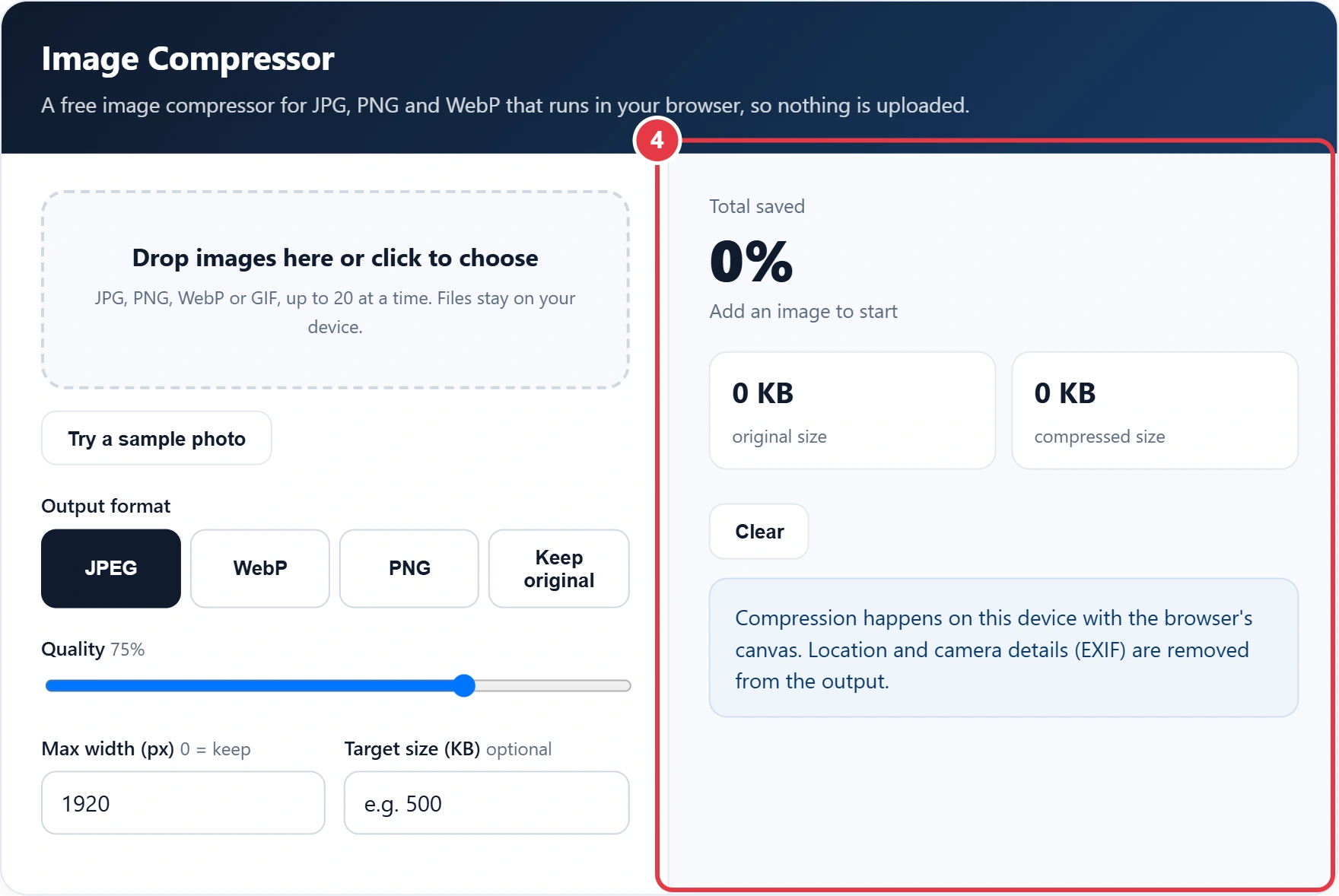
Drag up to 20 images onto the dashed box of the image compressor, or click it to choose files. JPG, PNG, WebP and GIF all work. A sample landscape loads automatically so you can see the results straight away.

Step 2: Choose the Output Format
Pick JPEG for photos that must open anywhere, WebP for the smallest files on modern websites, PNG for screenshots and logos, or Keep original to stay in the same format.

Step 3: Set Quality, Width or Target Size
Move the quality slider, set a maximum width in pixels, or type a target size in KB to compress image files to a known limit. With a target, the tool tests quality levels automatically and keeps the best one that fits.

Step 4: Compare and Download
Each image shows its old and new size, the percentage saved, the final dimensions and a Download button. If a file would get larger, the original is kept. To embed a small icon straight into HTML or CSS afterwards, the image to Base64 converter turns the compressed file into a data URI.
Which Image Format Gives the Smallest File?
WebP usually gives the smallest file for photos at the same visible quality, followed by JPEG, while PNG is largest for photos but best for sharp text and transparency. The table summarises when to use each format.
| Format | Compression | Transparency | Best for | Quality slider |
|---|---|---|---|---|
| JPEG | Lossy | No (becomes white) | Photos, email, any device | Yes, 70 to 80 suits most photos |
| WebP | Lossy here (lossless also exists) | Yes | Website images, smallest photos | Yes |
| PNG | Lossless | Yes | Screenshots, logos, diagrams | No, resize instead |
| GIF | Lossless, 256 colours | Basic | Simple animations | Saved as one frame here |
Every current major browser can display WebP, but some older desktop software cannot open it, so choose JPEG when you are unsure where the file will end up. MDN keeps a detailed guide to image file types if you need the technical details.
How Do I Compress an Image to a Specific Size? A Worked Example
You compress image files to a specific size by entering the size in the Target size box; the tool then searches for the highest quality that stays under that limit, and you lower the max width if it still cannot fit.
Grace needs to attach a passport style photo to an online application that accepts files up to 500 KB. Her phone photo is 4032 by 3024 pixels, which is 12.19 million pixels. She sets Max width to 1920, which makes it 1920 by 1440, or 2.76 million pixels, about 77% fewer. She types 500 in Target size and keeps JPEG. The tool tries seven quality levels and gives her the best one under 500 KB, shown next to the file. If the form also states minimum pixel dimensions, she checks the width against them before submitting.
Does Compressing an Image Reduce Its Quality?
Compressing an image with a lossy format does reduce quality, but at settings of 70 to 80 the loss is usually invisible at normal viewing size. Problems appear as blocky patches, smeared fine detail or halos around text when the quality is set too low.
Whichever image compressor you use, always keep your original file, because compressing the same JPEG again and again adds more damage each time. Re-encoding also strips EXIF metadata, including GPS location, which protects your privacy when you share photos online. After adding compressed images to a web page, the image alt tag checker confirms each one has a useful description. This page was checked October 2026.
Key Image Compressor Terms Explained
These definitions explain the settings behind the image compressor, so you can choose formats, quality and dimensions with a clear idea of the trade offs.
- Lossy compression
- Encoding that discards detail people are unlikely to notice in exchange for much smaller files. JPEG and WebP use it, and the quality slider decides how much is discarded, with 70 to 80 a common balance for photographs.
- Lossless compression
- Encoding that rebuilds every pixel exactly as it was. PNG works this way, so re-saving a photo as PNG keeps the file large; only reducing width and height brings the size down meaningfully.
- Pixel dimensions
- The width and height of an image in pixels, which together set how many pixels must be stored. Cutting a 4032 by 3024 image to 1920 by 1440 removes roughly 77% of them before any quality change.
- Exchangeable image file format
- The metadata block, usually called EXIF, that cameras and phones attach to photos, recording details such as GPS position, device model and capture time. Redrawing on a canvas leaves it behind.
- HTML canvas
- A browser drawing surface that scripts can paint images onto and export as a new file. The compressor relies on it to resize pictures and re-encode them locally without sending anything to a server.
</>Embed this calculator on your website
Add the free Image Compressor to your own site or blog. Copy the code below and paste it into an HTML block. It resizes itself and works on phones.
How we checked this tool: the Tools Veria Editorial Team built this tool by hand, checked it against the official rules or published standards where they apply, and tested it against worked examples. Results are estimates for planning, not personal financial or tax advice. Read our editorial policy and disclaimer, or report an error.
Frequently Asked Questions
Are my images uploaded to a server?
No. The image compressor reads each file with your browser, redraws it on a canvas and creates the new file on your device. You can disconnect from the internet after the page loads and it still works.
What quality setting should I use?
Start at 75%. Photos rarely look different between 70% and 85%, but the file can be much smaller. Drop towards 60% for thumbnails, and go above 85% only for images people will zoom into or print.
Why did my PNG barely get smaller?
PNG is lossless, so the quality slider does not apply. Reduce the max width, or convert the image to WebP or JPEG. Screenshots with flat colours compress well as PNG, but photos stay large.
Why is my compressed file larger than the original?
The original was probably already well compressed, or you converted to a less efficient format. When the output would be larger at the same size and format, the tool keeps your original file instead.
Does compressing remove location data from photos?
Yes. The new file is built from pixels only, so EXIF data such as GPS position, camera model and date taken are not copied. Keep the original if you need that information.
How do I reduce image size for email?
Set the max width to about 1600 pixels and use JPEG at 70% to 80%. Most attachments then fall well under the limits that common email services set, and recipients can open them on any device.